Create Your Genesis Studio Account
Before you dive into AI avatar creation, let’s get your Genesis AI Avatar Studio account set up.
- Go to the Genesis AI Avatar Studio welcome page and enter your email in the designated field:
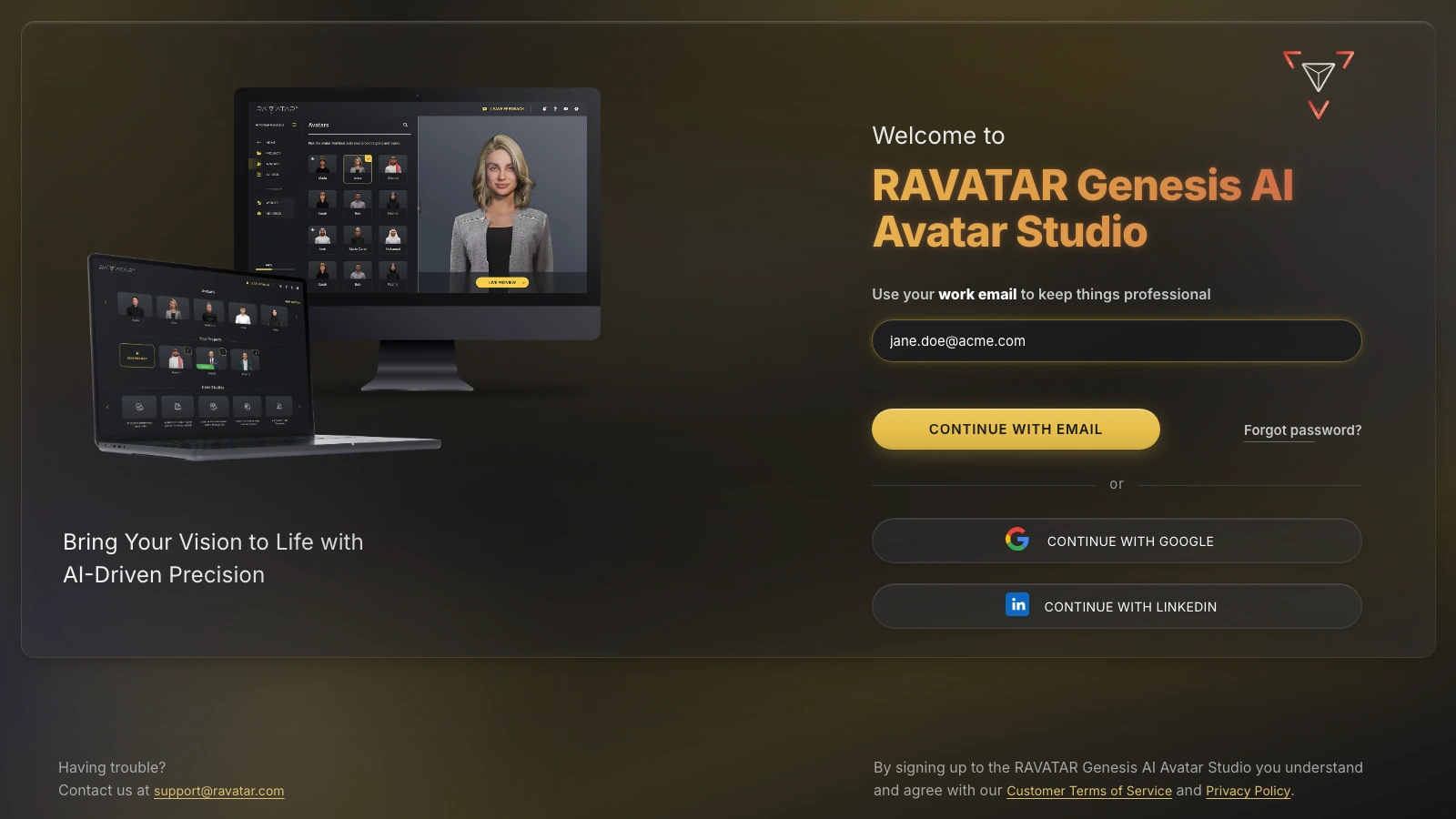
Click CONTINUE WITH EMAIL.
Prefer a faster start? You can also sign up automatically with your Google or LinkedIn account by selecting the CONTINUE WITH GOOGLE or CONTINUE WITH LINKEDIN option below the email field. Just confirm access with your credentials, and you’ll be logged in instantly – no additional steps required. Once in, you can jump straight to exploring the dashboard and start creating your first project.
- If continuing with an email, you’ll be prompted to enter your account details:
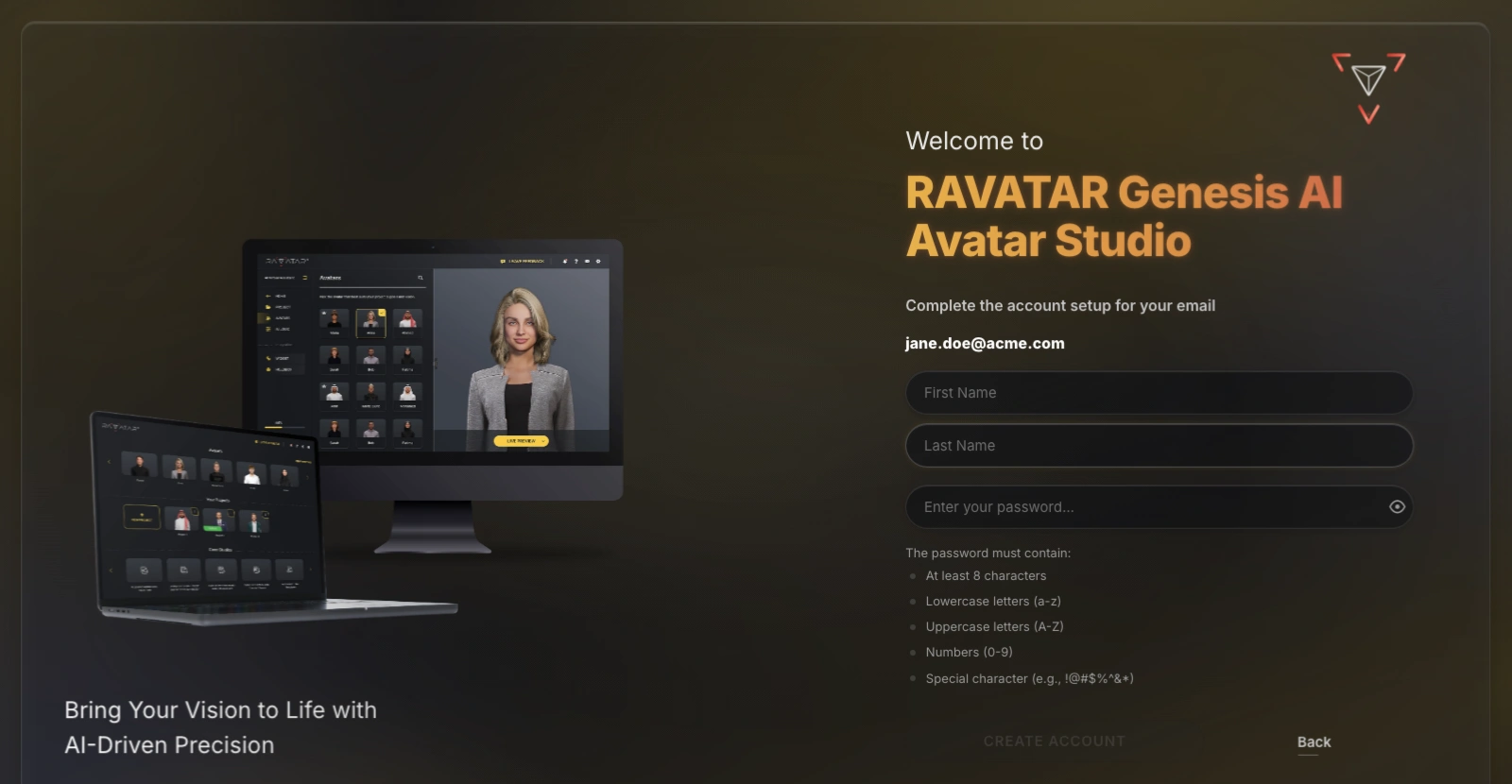
Provide the following information:
- First Name
- Last Name
- Desired password (make sure it meets the requirements listed below the field – the checklist marks each rule as your password satisfies it)
When you’re ready, click CREATE ACCOUNT to move on.
- At the next step, you’ll be asked to verify your account email:
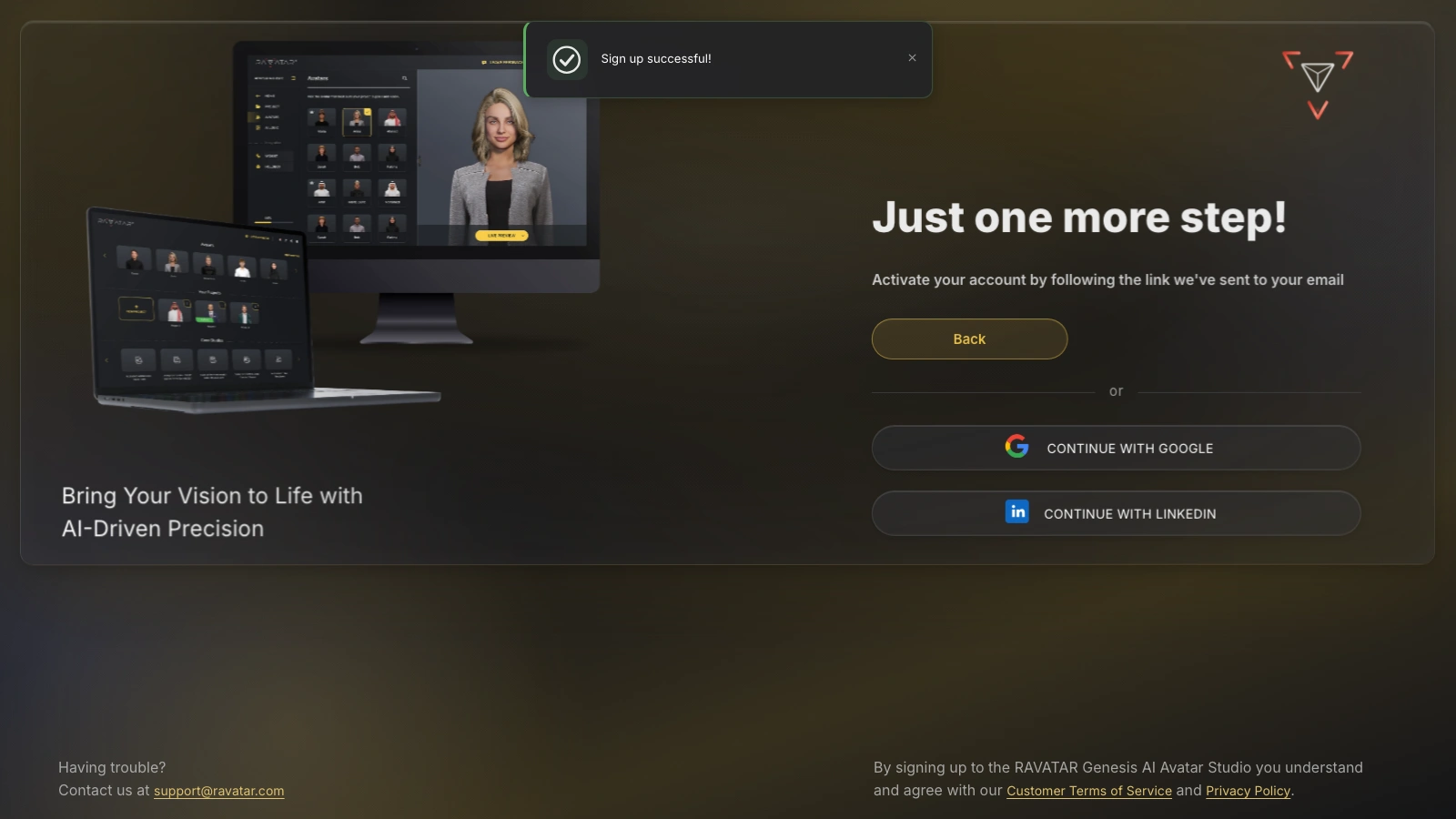
Go to your inbox and look for the message titled Verify your email. If it doesn’t arrive within a few minutes, check the spam folder first; should the message still be missing, contact the RAVATAR team at support@ravatar.com.
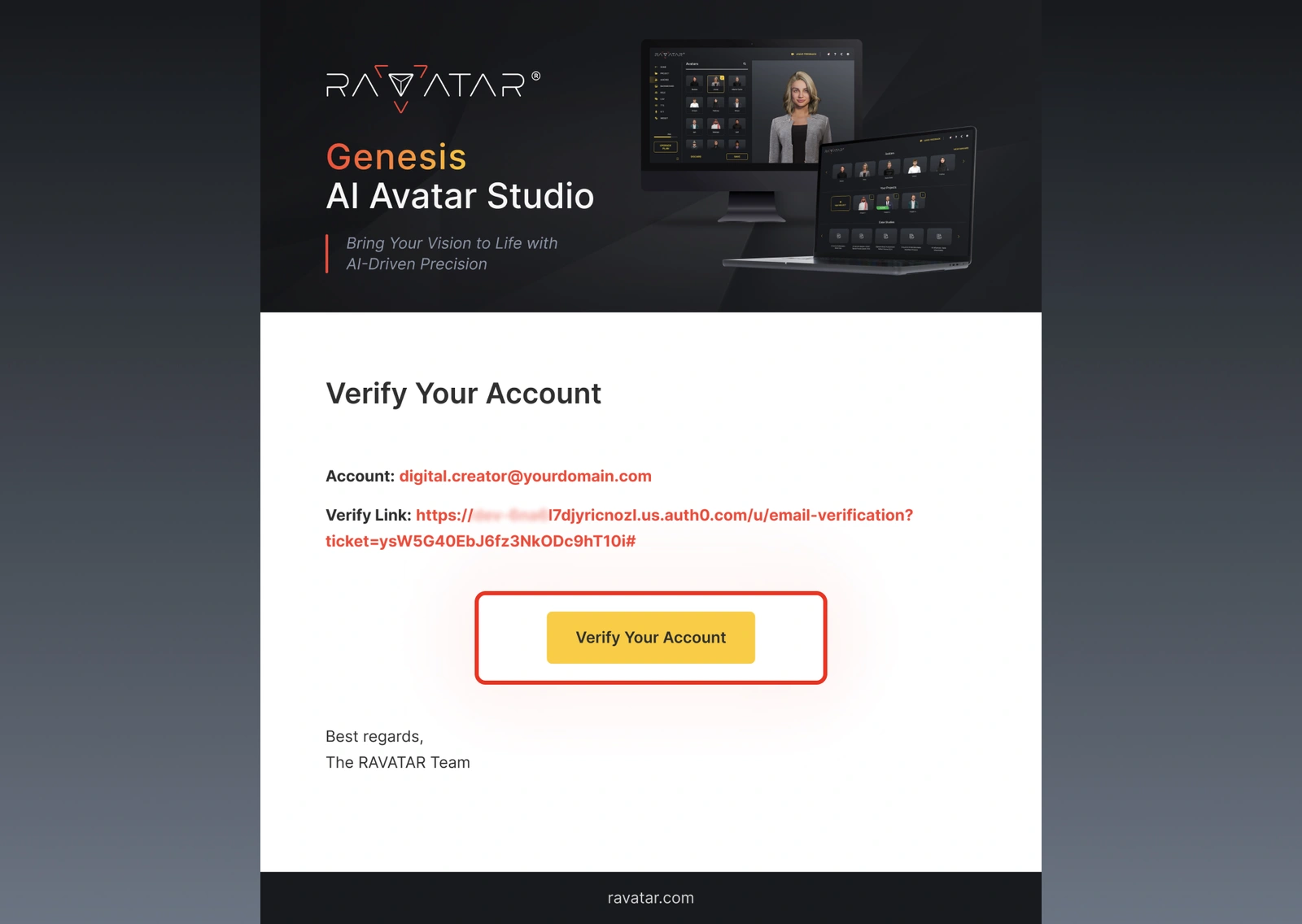
Open this email and click the Verify Your Account button. You’ll be redirected to a confirmation screen showing the Email Verified message.
- Simultaneously, you’ll receive another email, which is a welcome message containing a login link:
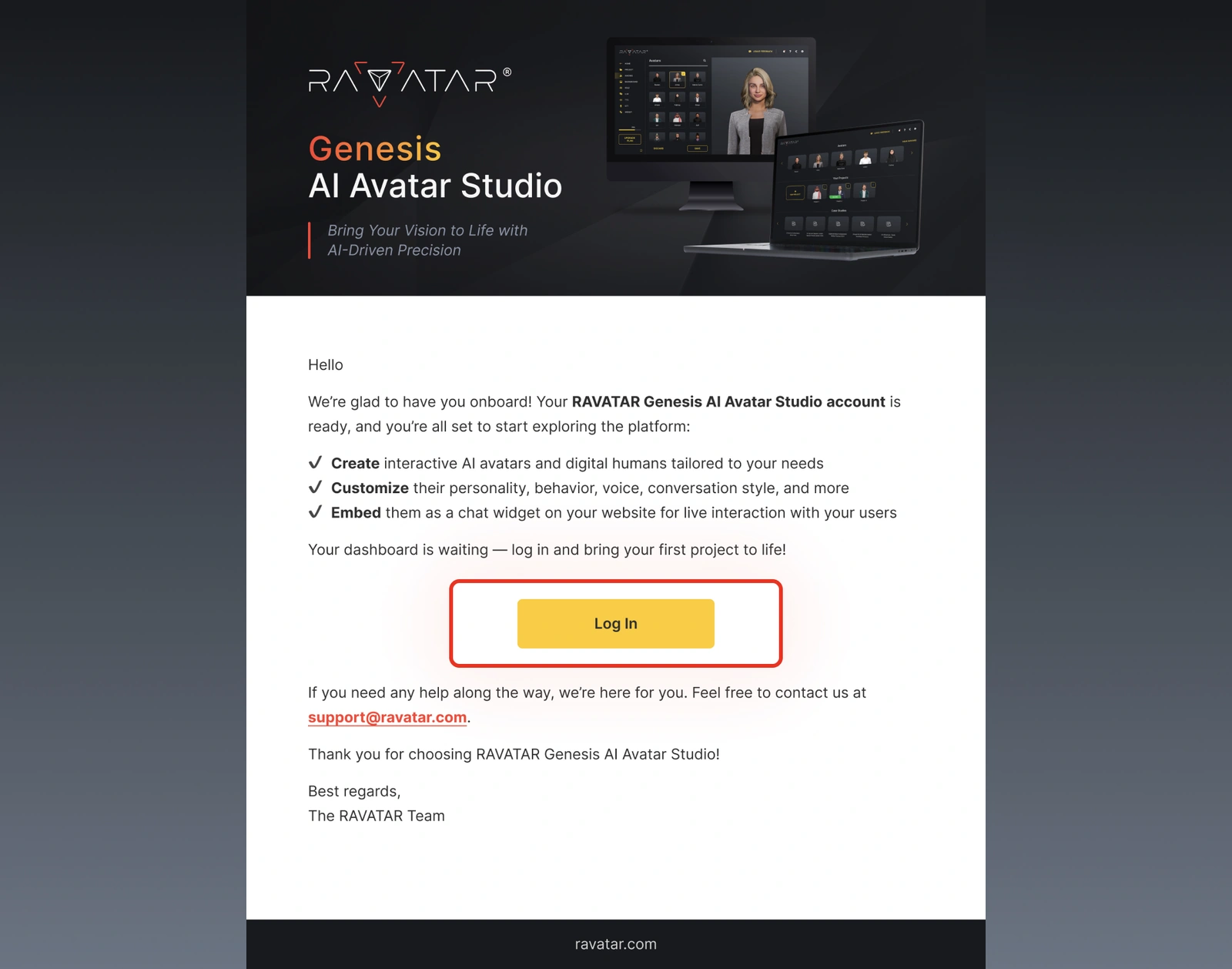
Follow it to access the Genesis Studio dashboard (or return to the tab where you completed registration) and sign in with your credentials.
From there, you can start exploring the dashboard and launch your first project using our step-by-step guides.