Genesis AI Avatar Studio Dashboard
After logging into Genesis AI Avatar Studio, you’ll land on the Dashboard – your central hub for managing all your AI avatar projects.
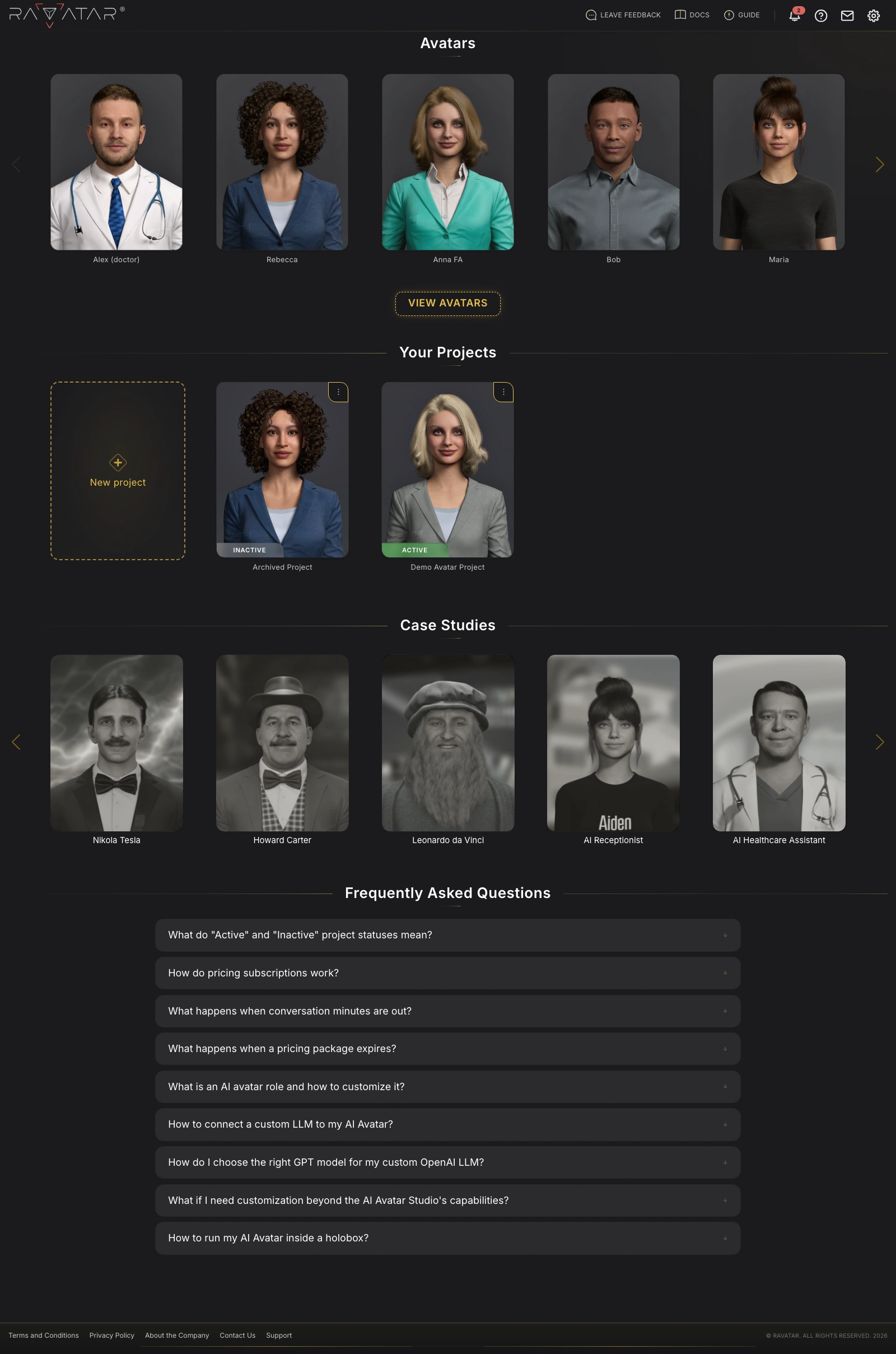
From here, you can:
- Preview available avatars
- Create and manage projects
- Explore AI avatar case studies
- Find answers to FAQs
- Access utilities and notifications
- Manage your account settings
Avatar Collection Preview
At the top of the dashboard, you’ll find a curated library of pre-designed AI avatars.
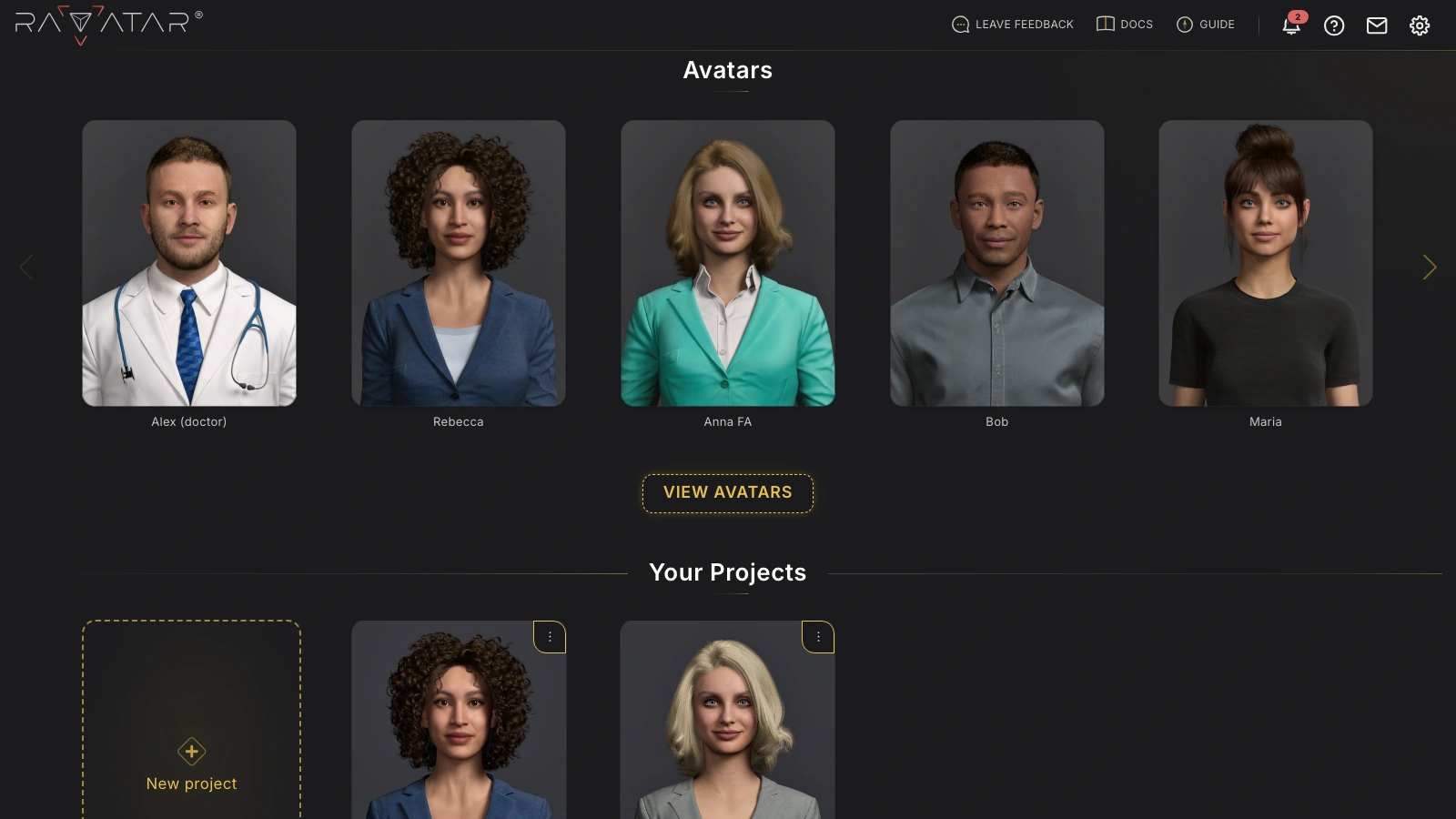
You can browse the available characters using the side arrows or select VIEW AVATARS below the carousel to expand the full collection.
Clicking on any avatar will launch a demonstration video, showcasing the appearance and movement of the chosen digital human in more detail.
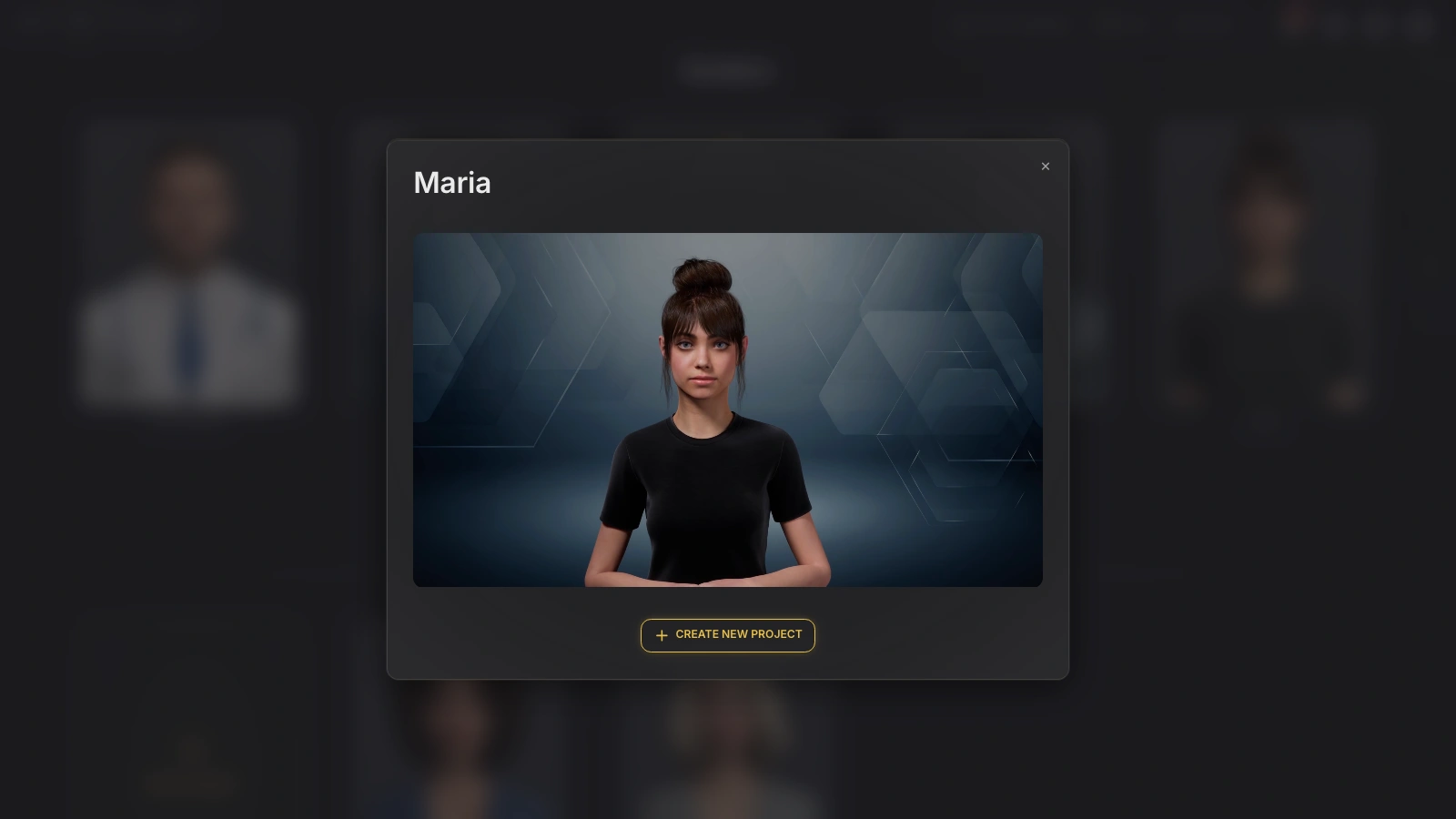
This lets you get a feel for each character and decide which one aligns best with your goals. Once you find a match, you can instantly start a new project with this avatar by clicking the CREATE NEW PROJECT button right below the video.
Project Management
The Your Projects pane of the dashboard gives you a centralized view of all your existing AI avatar projects.
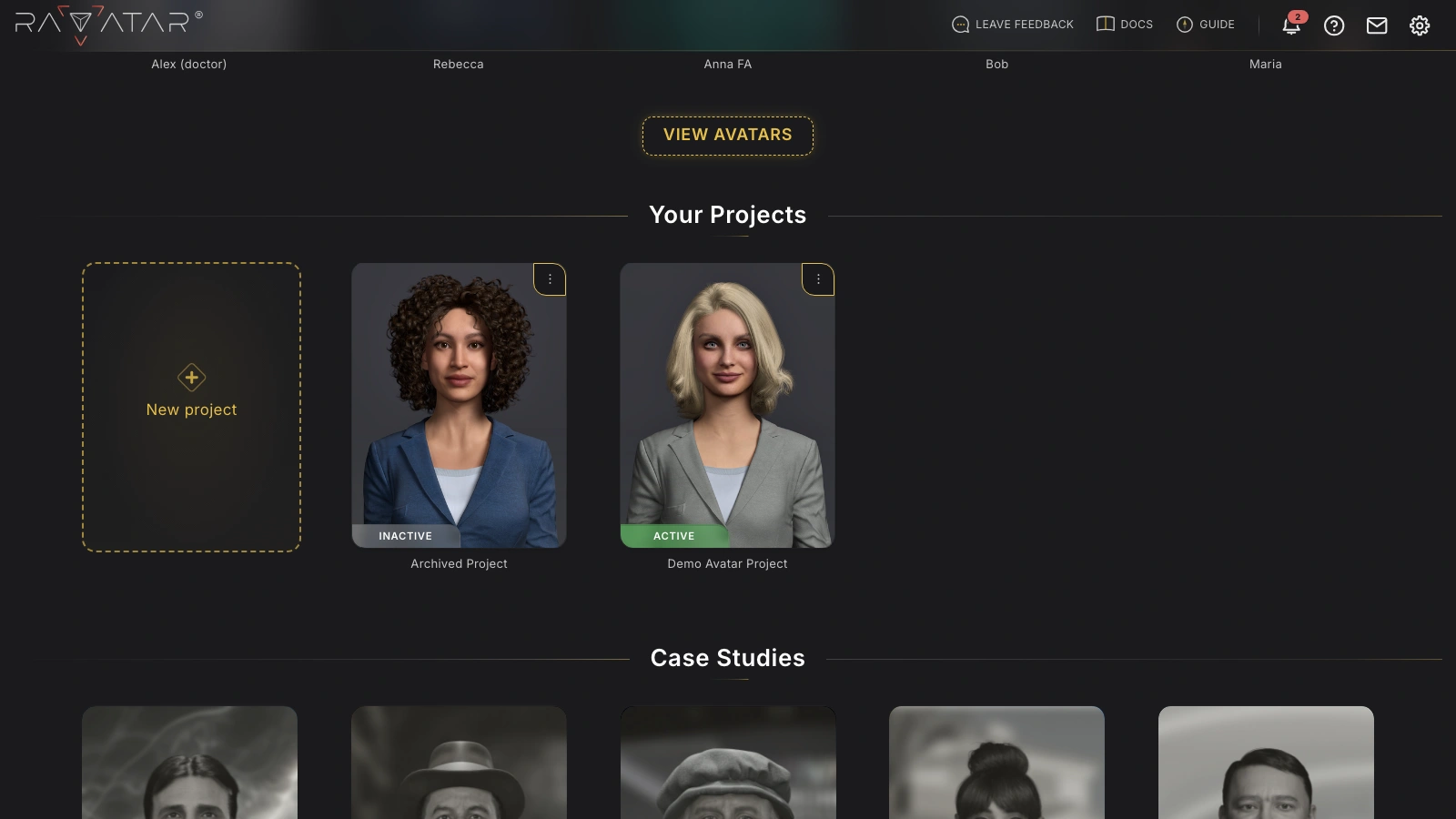
From here, you can quickly check each project’s status (Active or Inactive), create new projects using the New project tile, and manage existing ones through the options available in the project’s menu.
This menu opens under the three-dots icon in the top-right corner of each project tile and lets you:
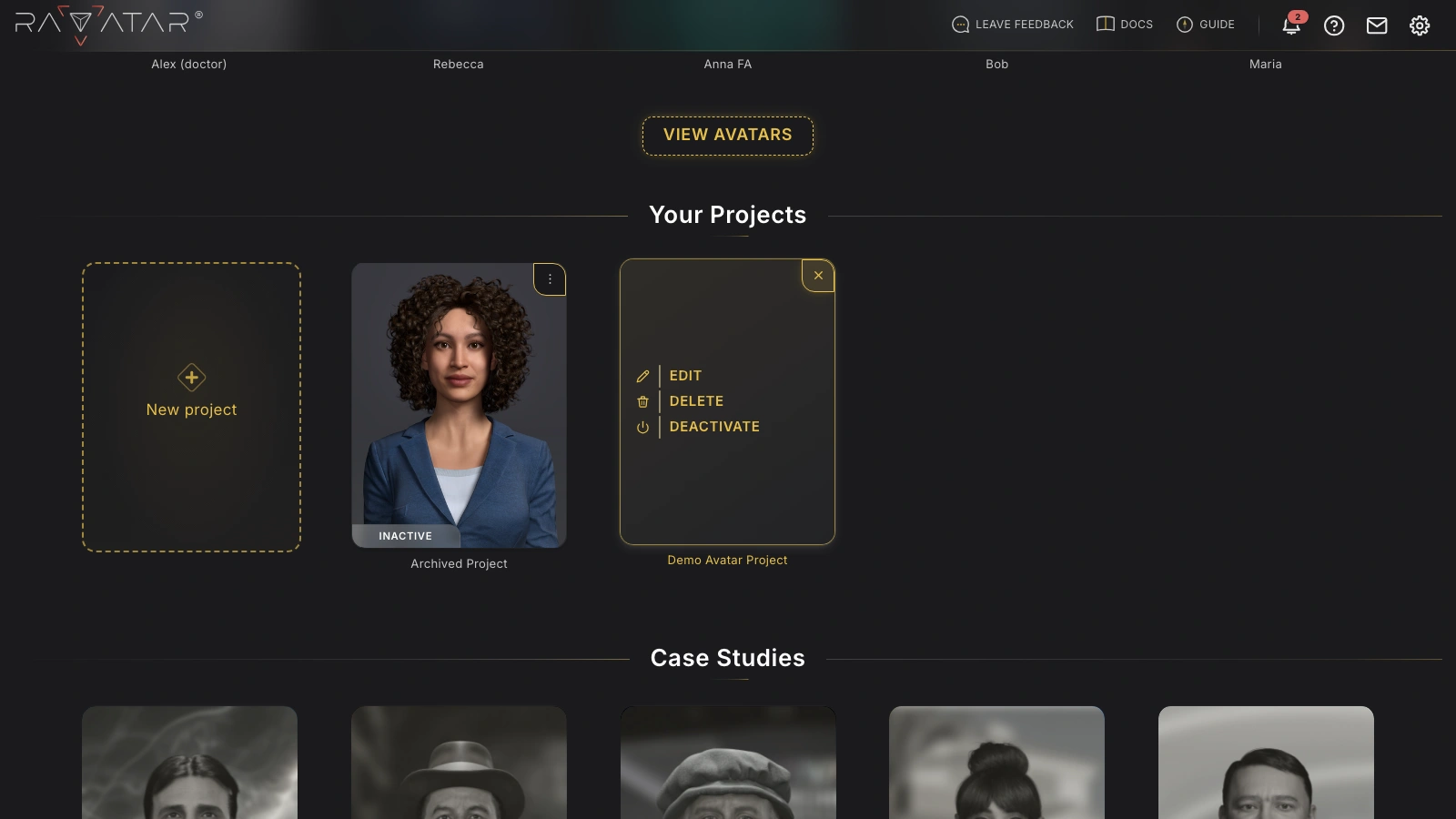
- EDIT – select this option to open the configuration wizard for your AI avatar project
- DELETE – use it to permanently remove a project that is no longer needed
- ACTIVATE/DEACTIVATE – allows you to either initiate the subscription purchase or manage its auto-renewal (the exact functionality depends on your project’s current status)
In shared projects, the management options depend on your access level: EDIT is available to the project owner and editors, while DELETE and ACTIVATE/DEACTIVATE can only be used by the owner.
Case Studies & Best Practices
This section features a curated set of our case studies, highlighting real-world applications and successful implementations of RAVATAR 3D AI avatars and digital humans across various industries.
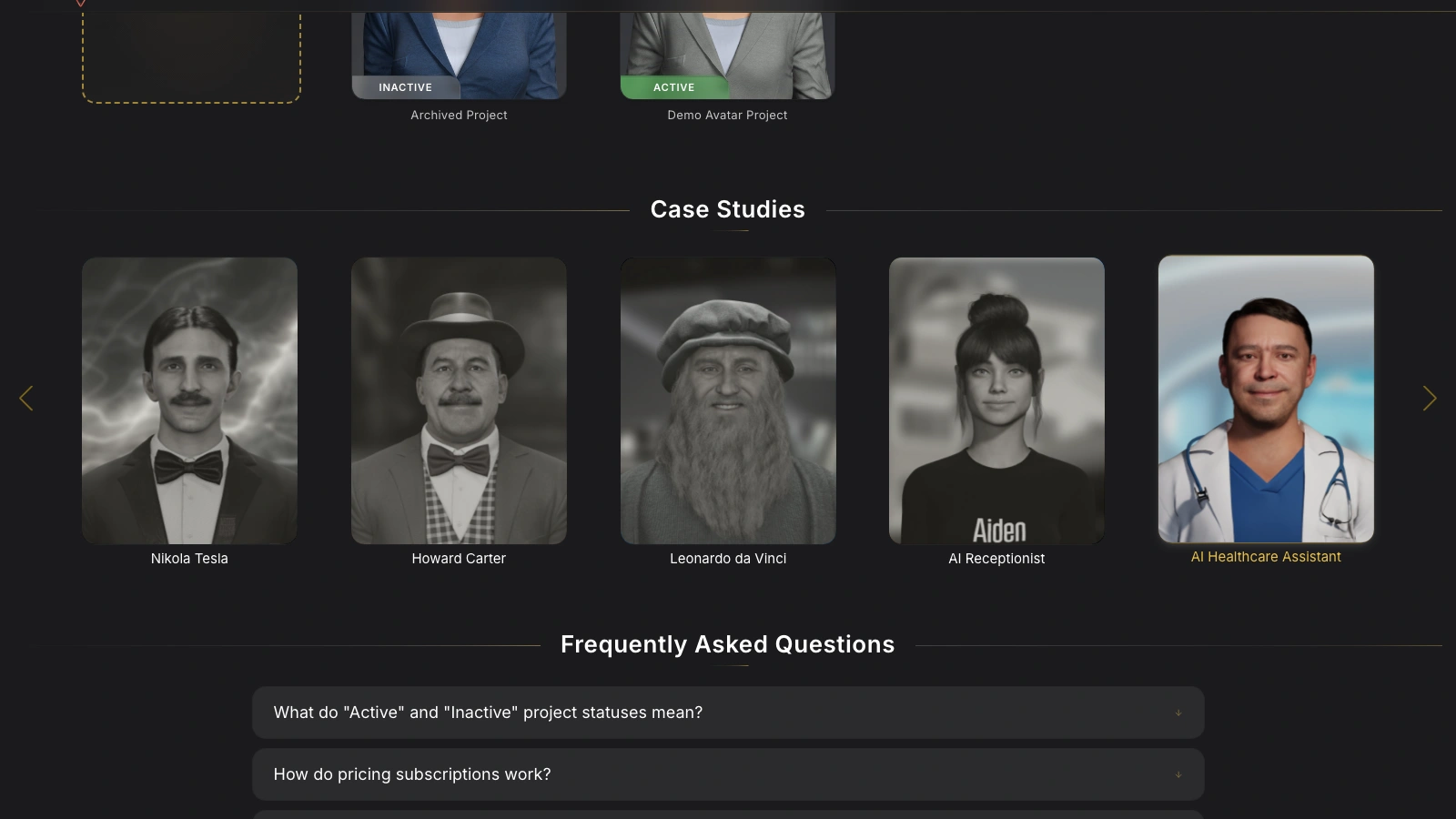
These examples demonstrate how businesses and organizations leverage real-time AI avatars in areas such as customer service, marketing, education, brand representation, public communication, and more. They offer a practical lens into what’s possible, helping you better understand the technology and discover potential use cases for your own undertakings.
The collection is continuously updated with proven success stories and evolving best practices.
FAQ Section
The Studio dashboard also includes a Frequently Asked Questions (FAQ) section at its bottom, addressing common queries related to subscription management and billing terms, avatar customization, LLM integration, and more. Click on any question to expand its detailed answer:
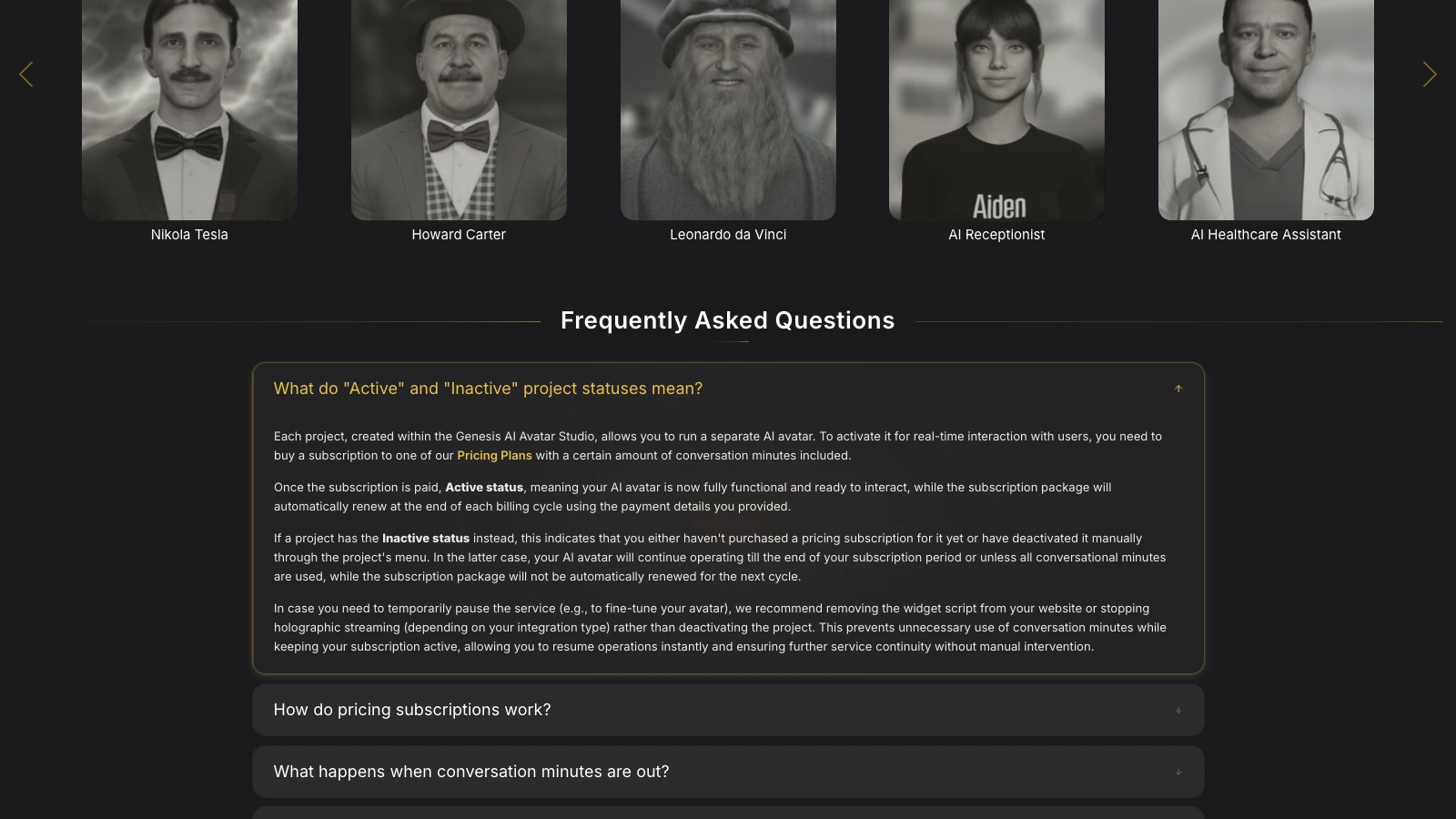
If anything is unclear for you, we suggest going through this information first – most questions that a new Studio user may have are already answered here.
If the info you’re looking for isn’t covered here, feel free to reach out to our team at support@ravatar.com or use the Support option in the dashboard (look for the envelope icon in the top-right corner).
Utility & Notification Panel
The top-right section of the dashboard features a row of utility controls that give you quick access to additional tools, settings, and support.
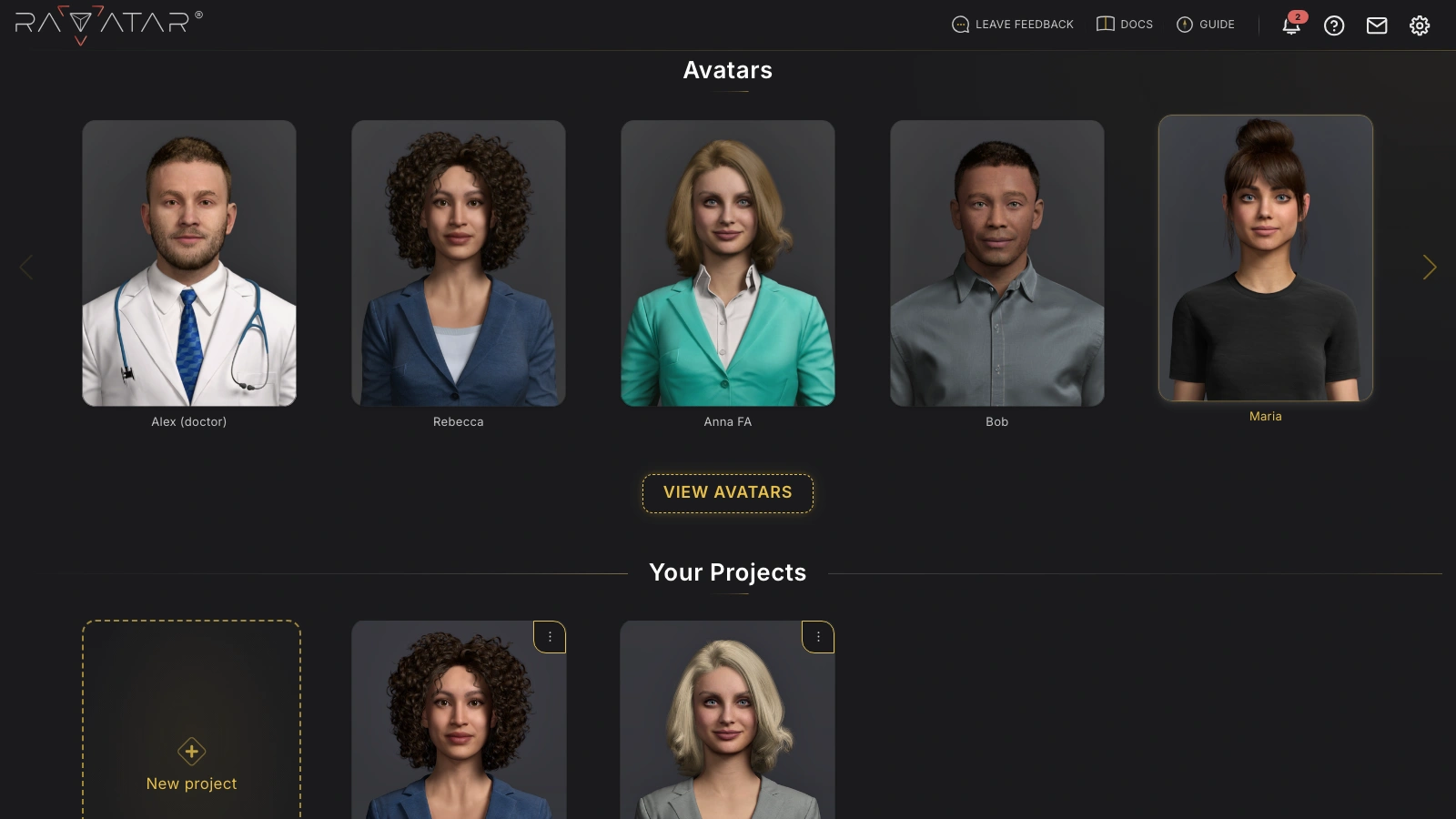
Here, you’ll find:
- The LEAVE FEEDBACK option, clicking which opens a dedicated window for rating the platform and sharing your experience:
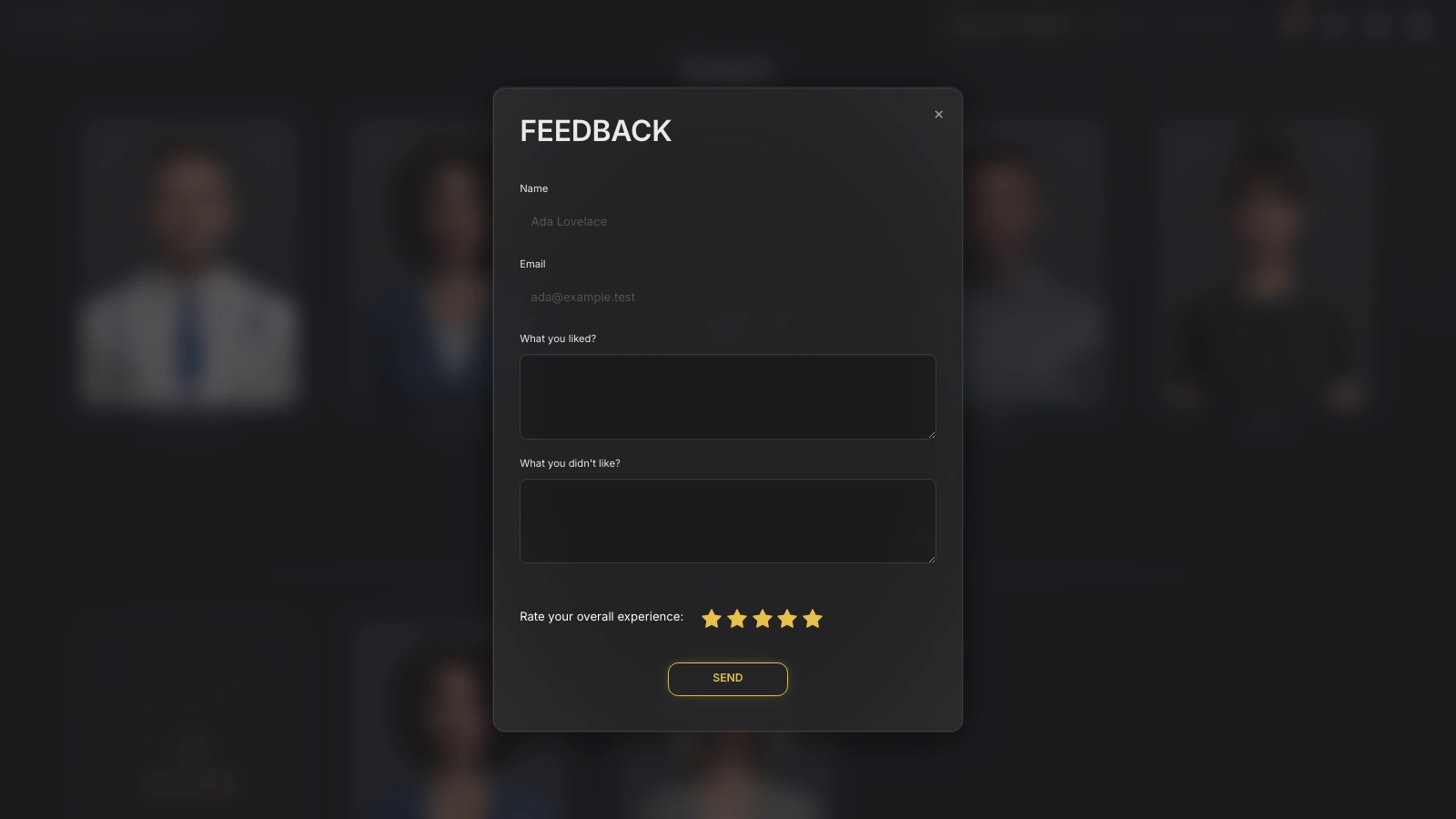
Your name and email are filled in automatically from your account. Describe your experience with the Studio in the What you liked? and What you didn’t like? fields, set the star rating, and click SEND. Your comments go directly to our team, and we genuinely appreciate your input!
-
The DOCS option, which opens this documentation site in a new browser tab.
-
The GUIDE option, which restarts the interactive onboarding tour of the Studio – handy if you skipped it on your first visit.
-
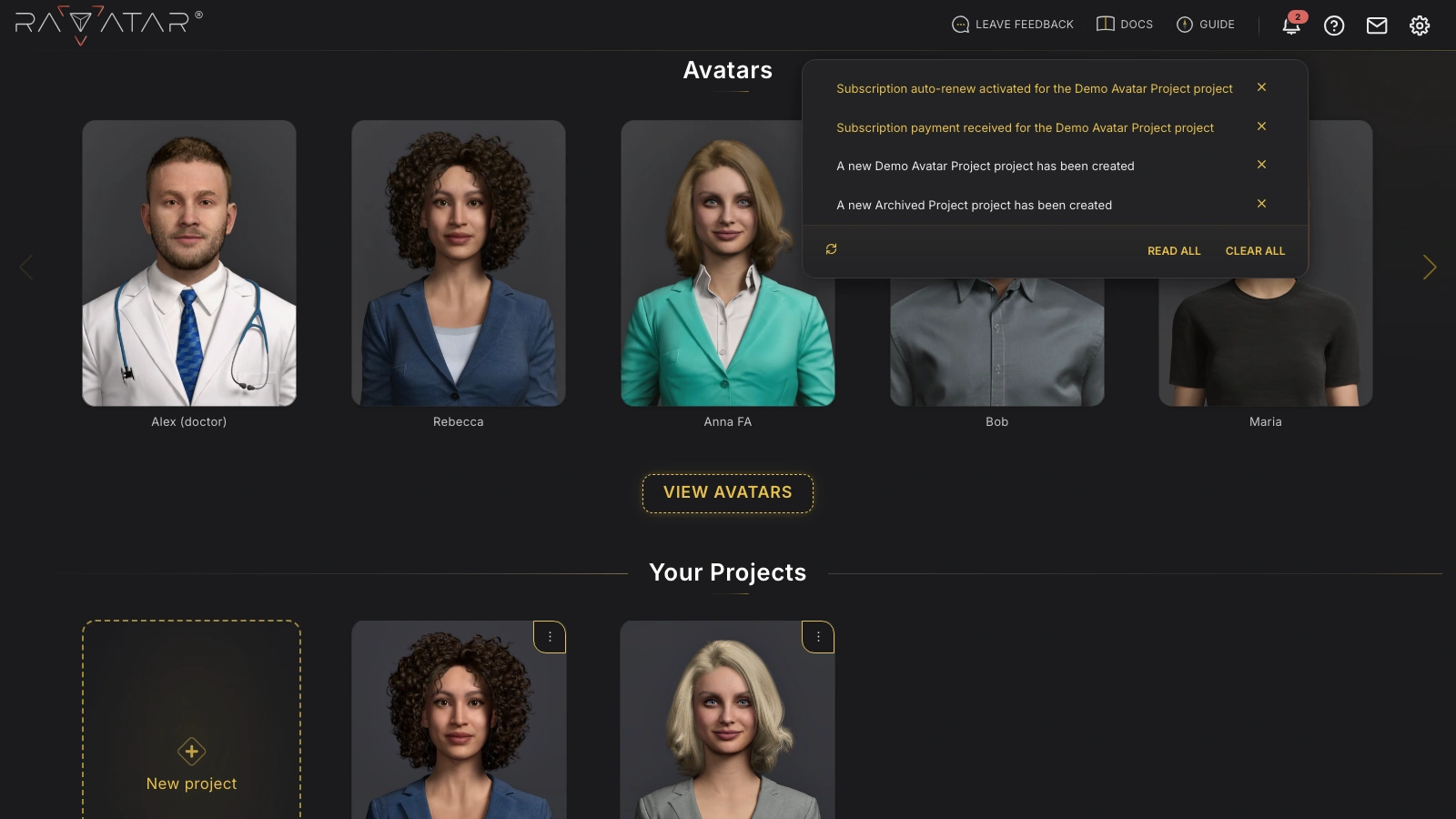
The Notifications panel under the bell icon, where you can view system messages related to your projects and subscriptions. The badge on the icon shows the number of unread notifications; use READ ALL to mark them as viewed or CLEAR ALL to empty the list.
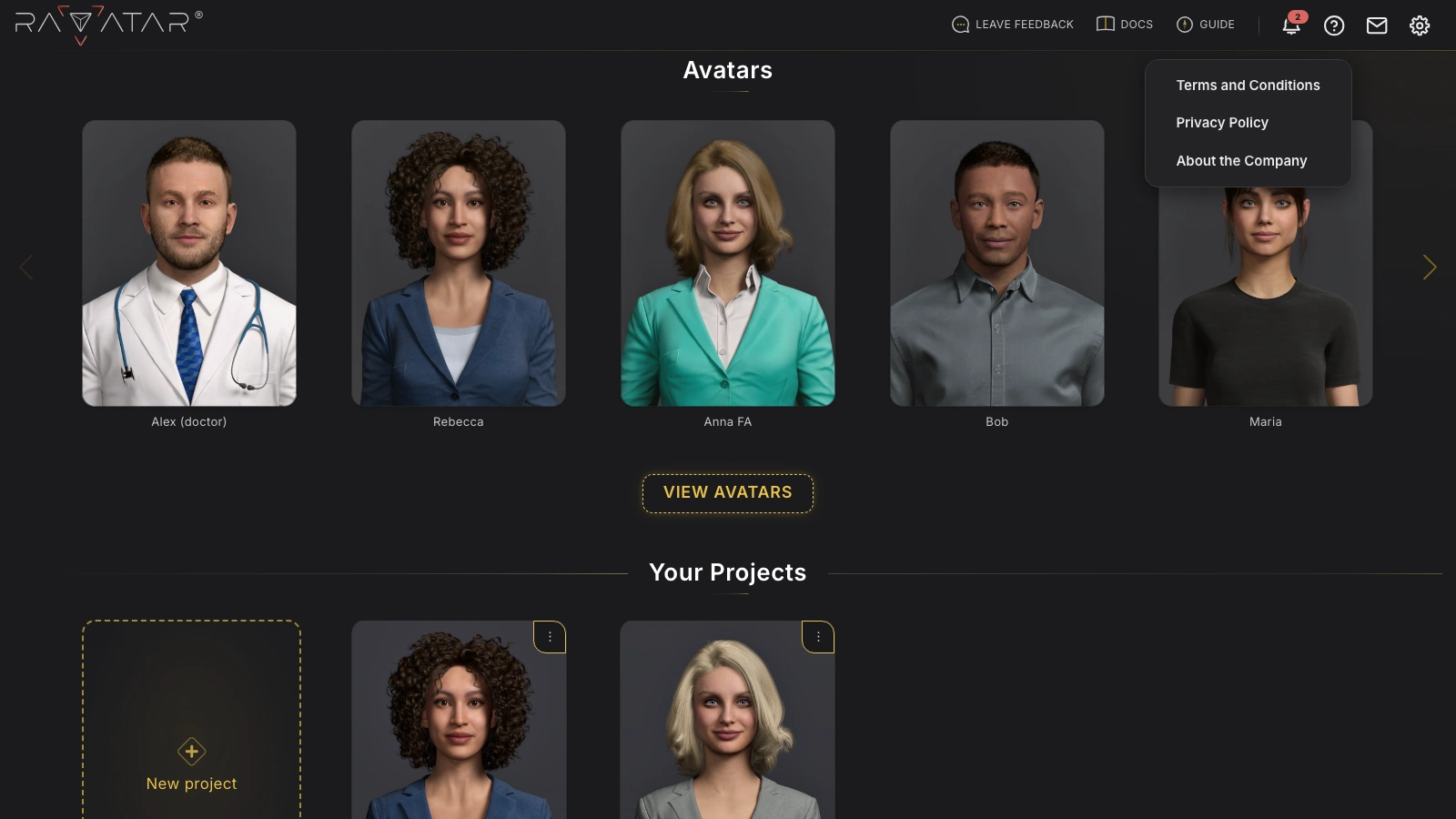
- The Help menu, shown as a question mark icon, with links to the platform’s Terms and Conditions, Privacy Policy, and general information about the company and its offerings.
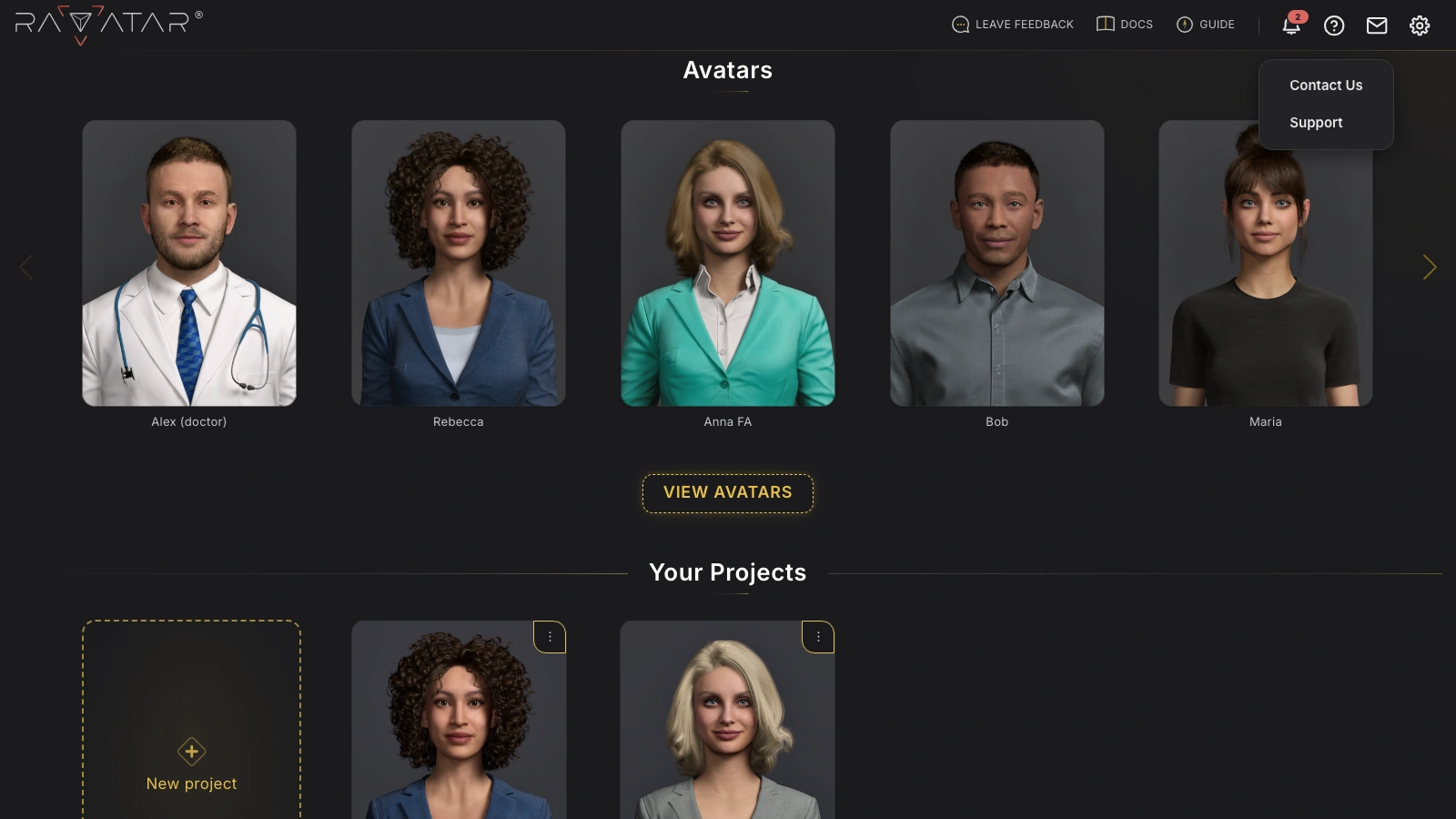
- The Contact & Support menu, found under the envelope icon, which gives you access to two forms: Contact Us for general inquiries like custom AI avatar development or service questions, and Support for reporting technical issues. Both options take you to the corresponding form on the RAVATAR website with your account name and email already filled in.
- The Settings menu under the gear icon, which allows you to access your account preferences, adjust the Studio appearance via the Personalization option, or log out from the Studio.
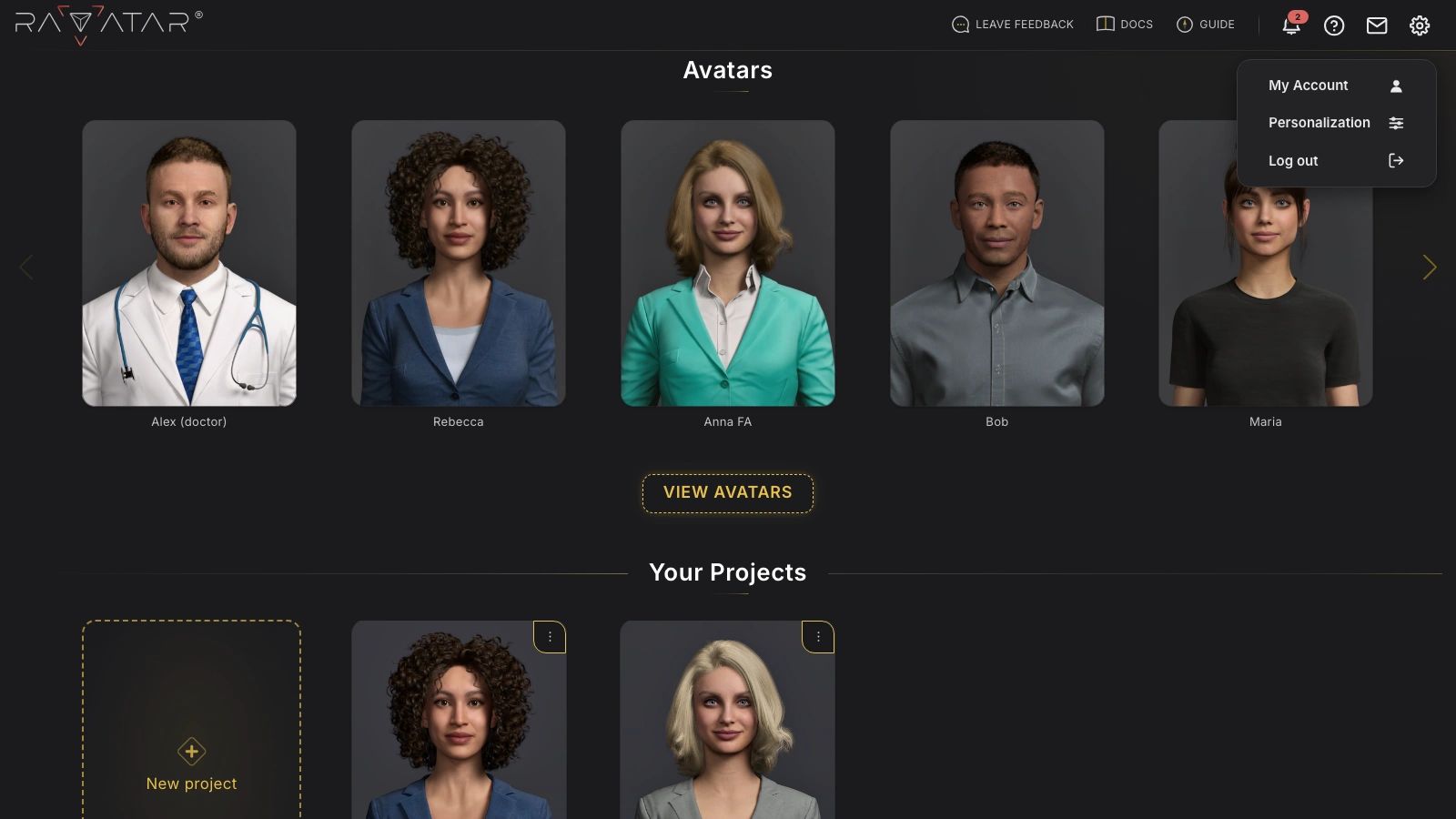
All the described icons are always visible on the dashboard, so you can access these utilities at any time while working on your projects.
Account Settings
Preferences for your Genesis Studio user account are available under the My Account option within the gear icon menu at the top right of the dashboard:
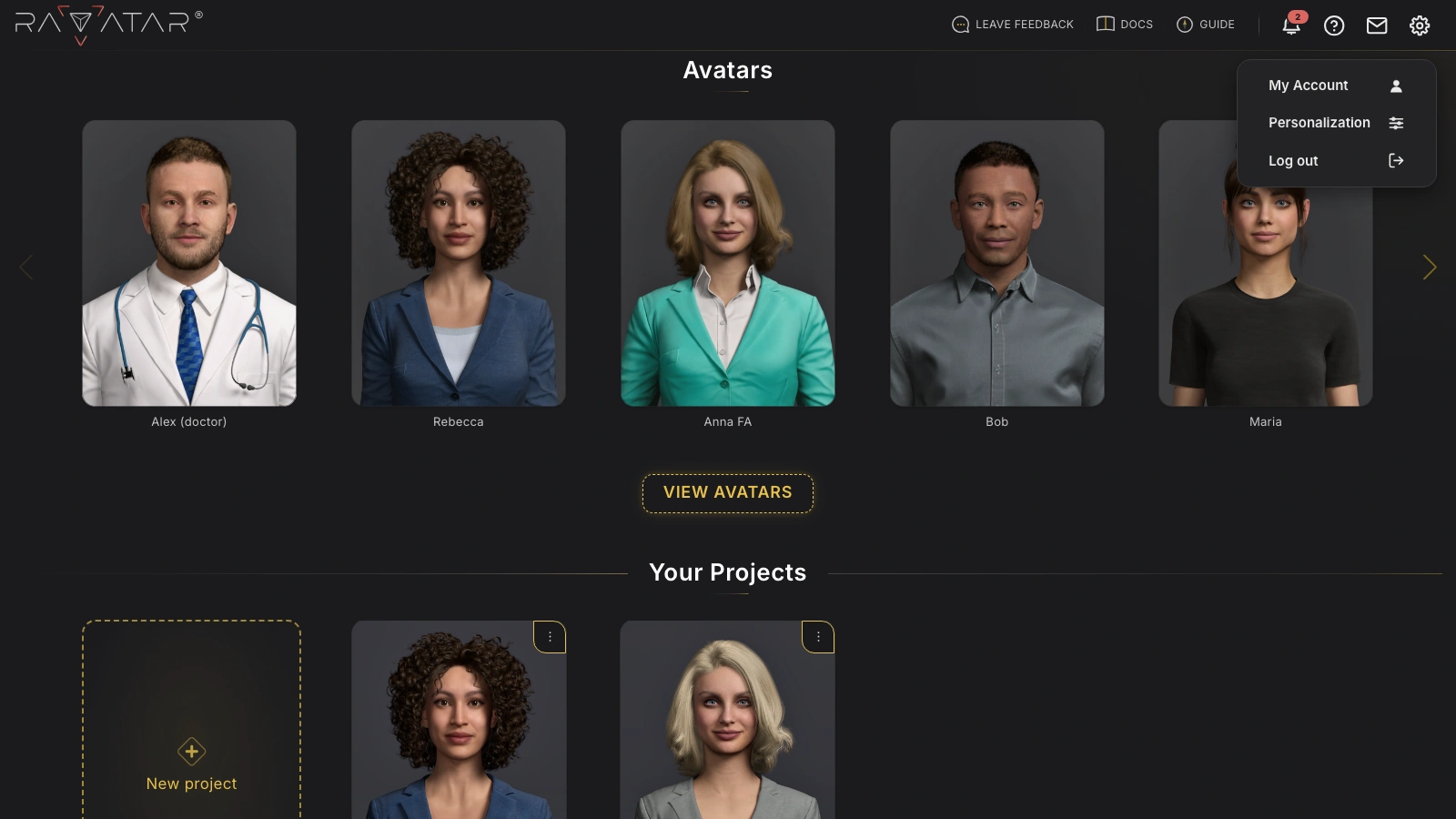
In this section, you can review your account details, such as your name and email address, adjust your cookie preferences using the MANAGE COOKIES option, and access the option to delete your account if necessary:
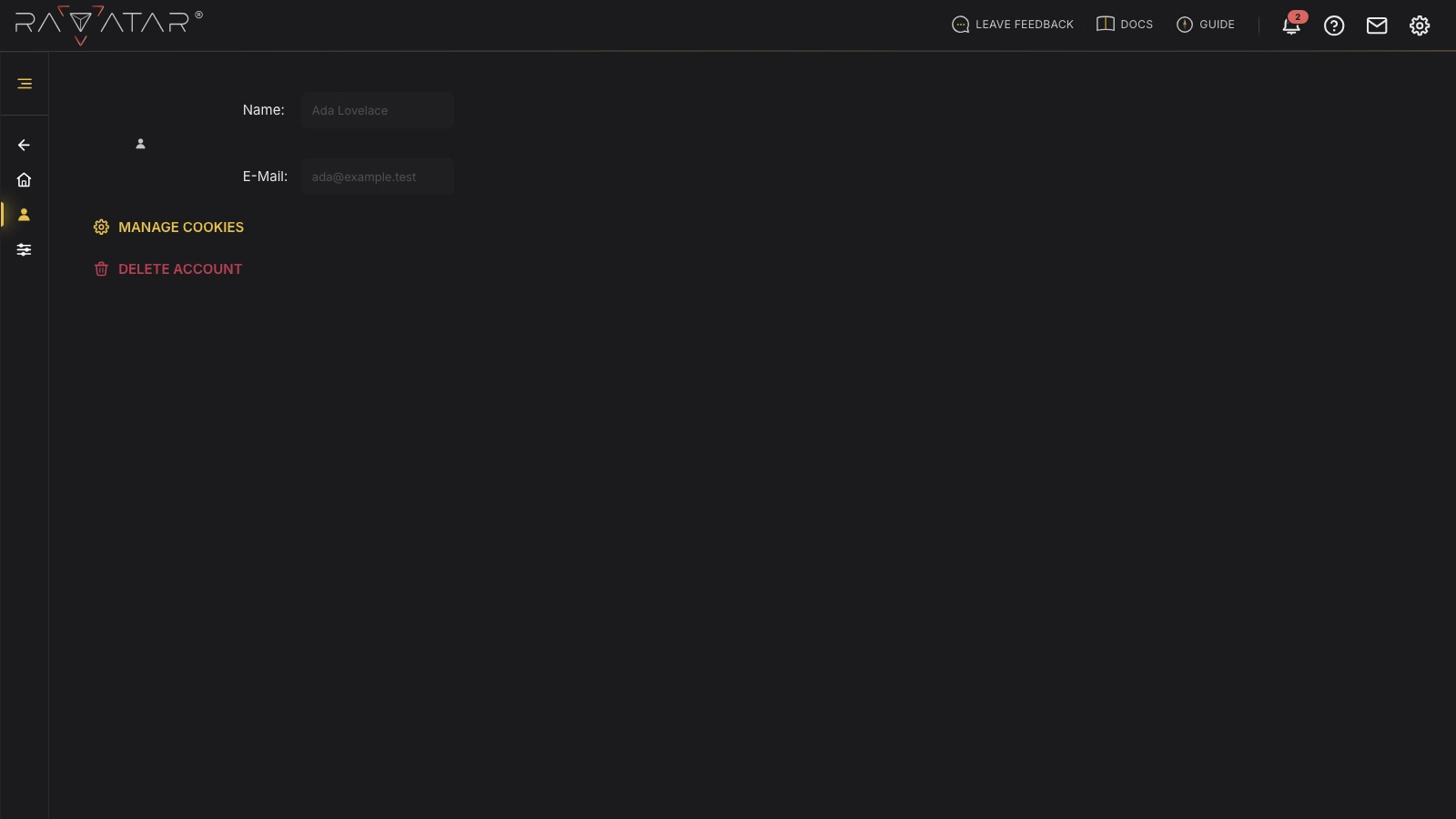
If you decide to delete your account, select DELETE ACCOUNT and confirm your choice in the pop-up window that appears. As a safeguard, you’ll be asked to type the confirmation phrase shown in the dialog (your email address in capital letters followed by -DELETE) – the DELETE button stays disabled until the phrase matches exactly.
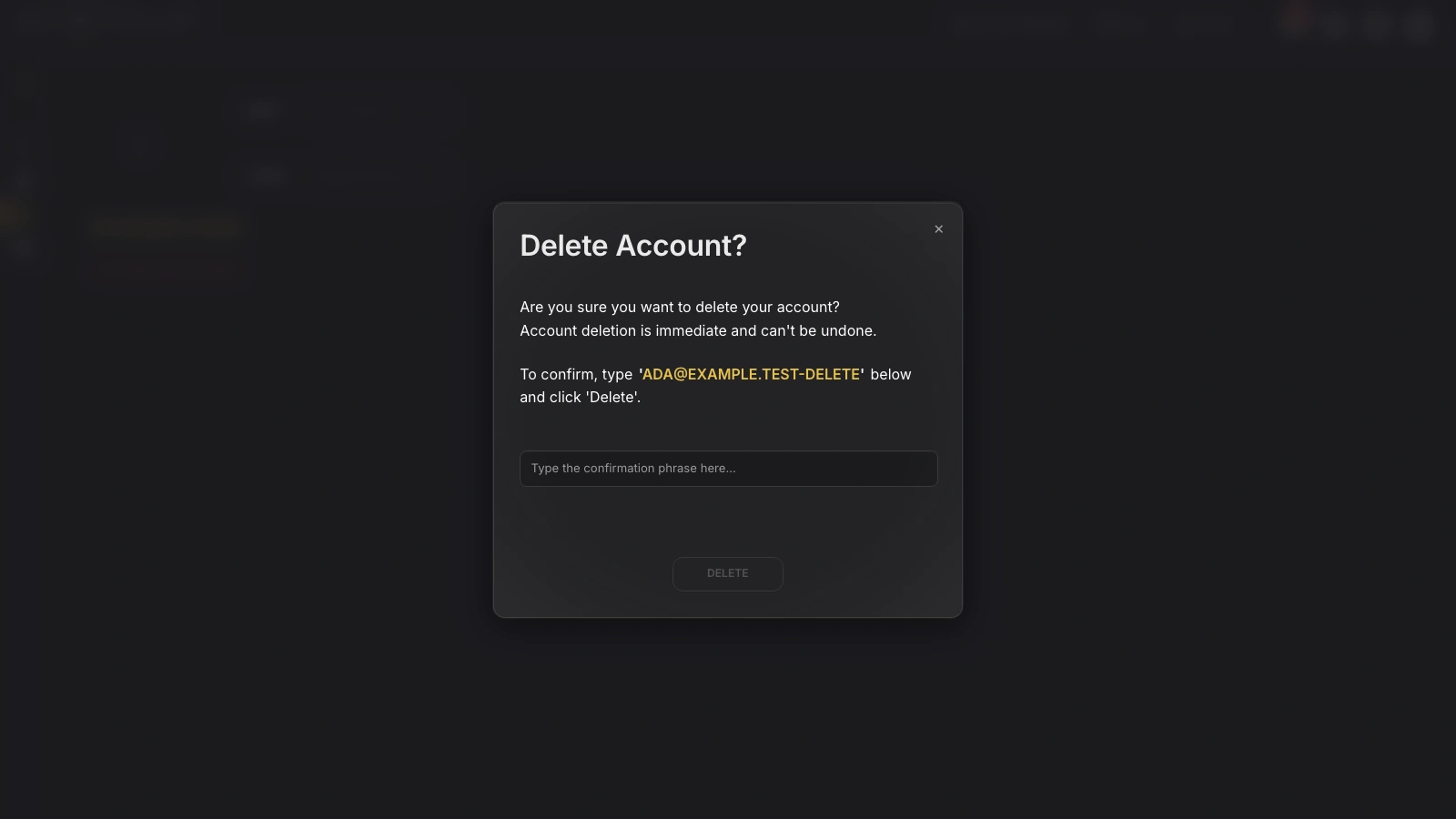
Deleting your account will permanently erase all your AI avatar projects and related data. This action is immediate and cannot be undone, and any remaining subscription resources will not be refunded.
Once you’re comfortable navigating the dashboard, the natural next step is to create your first AI avatar project and bring your digital human to life.