CONVERSATIONS
The Conversations section is the history of every chat your AI avatars have had with your visitors. Use it to review what people ask, check how each message was handled, and replay a whole conversation from start to finish.
Here’s what you can do in this section:
Conversation Log
Every exchange your avatar has handled appears as a row in the log, with the most recent messages first.
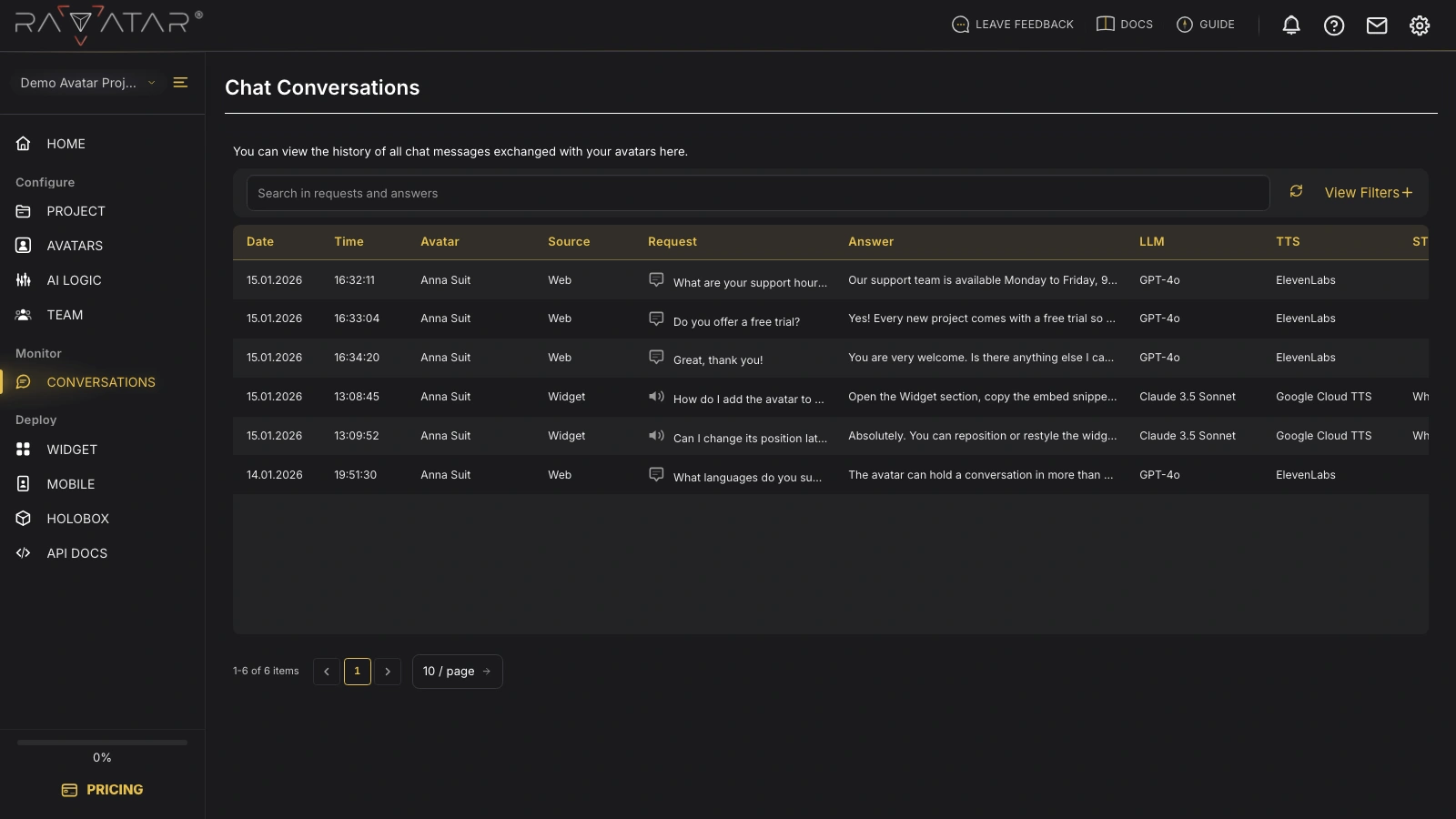
Each row summarizes a single message:
- Date and Time – when the visitor sent the message.
- Avatar – which avatar answered.
- Source – where the chat happened, such as Web or Widget.
- Request – what the visitor said, with an icon showing whether it arrived as Text or Audio.
- Answer – how the avatar replied.
- LLM, TTS, and STT – the models that generated the reply, voiced it, and transcribed the visitor’s speech.
At the bottom of the list, a pager shows how many messages there are and lets you switch between 10, 20, 50, or 100 rows per page.
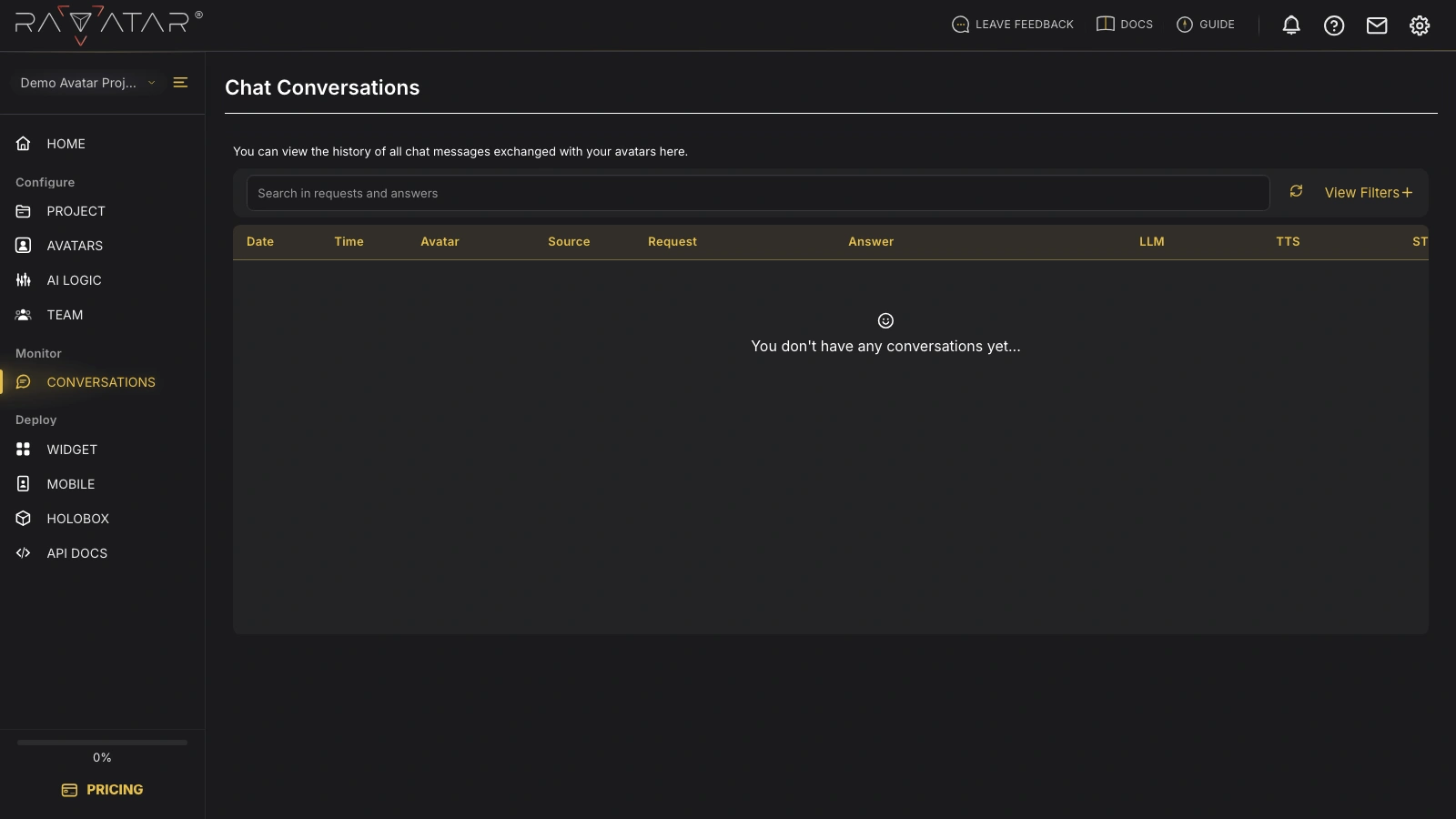
When your avatars haven’t spoken to anyone yet, the log stays empty and shows a friendly placeholder where the table would be.
Filtering Conversations
Once the log grows, the filter bar at the top helps you find a specific conversation.
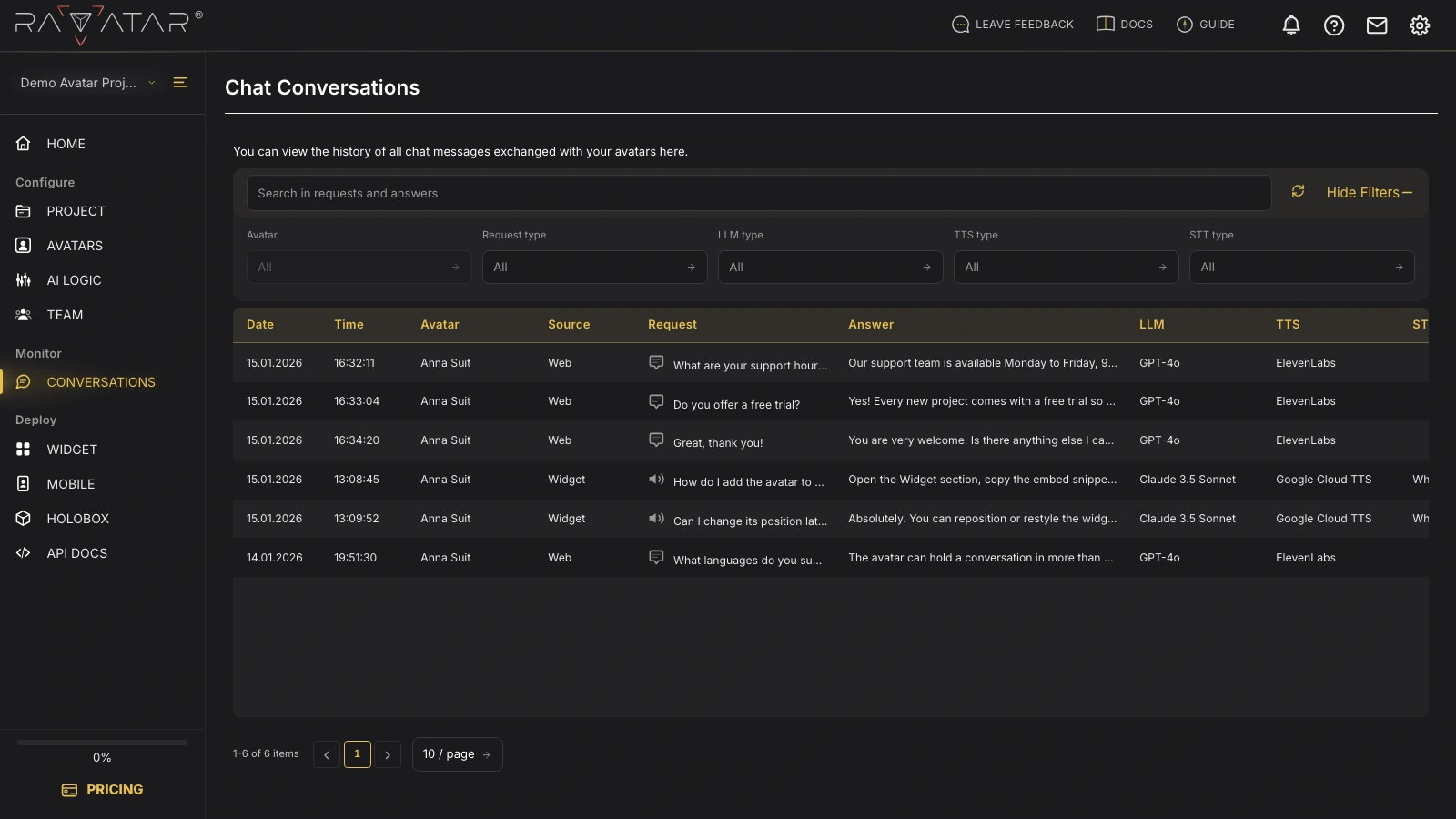
Type in the search field to match any text in the requests and answers – the list updates as you type. Click View Filters to expand the dropdowns and narrow the log by:
- Avatar – show only the chats handled by one avatar.
- Request type – limit the list to Text or Audio messages.
- LLM type, TTS type, and STT type – filter by the models involved.
Each dropdown stays disabled until there is more than one option to choose from. Use the Refresh button next to the search field to reload the log with the latest messages.
Message Details
Click any row to open its full details in a panel on the right.
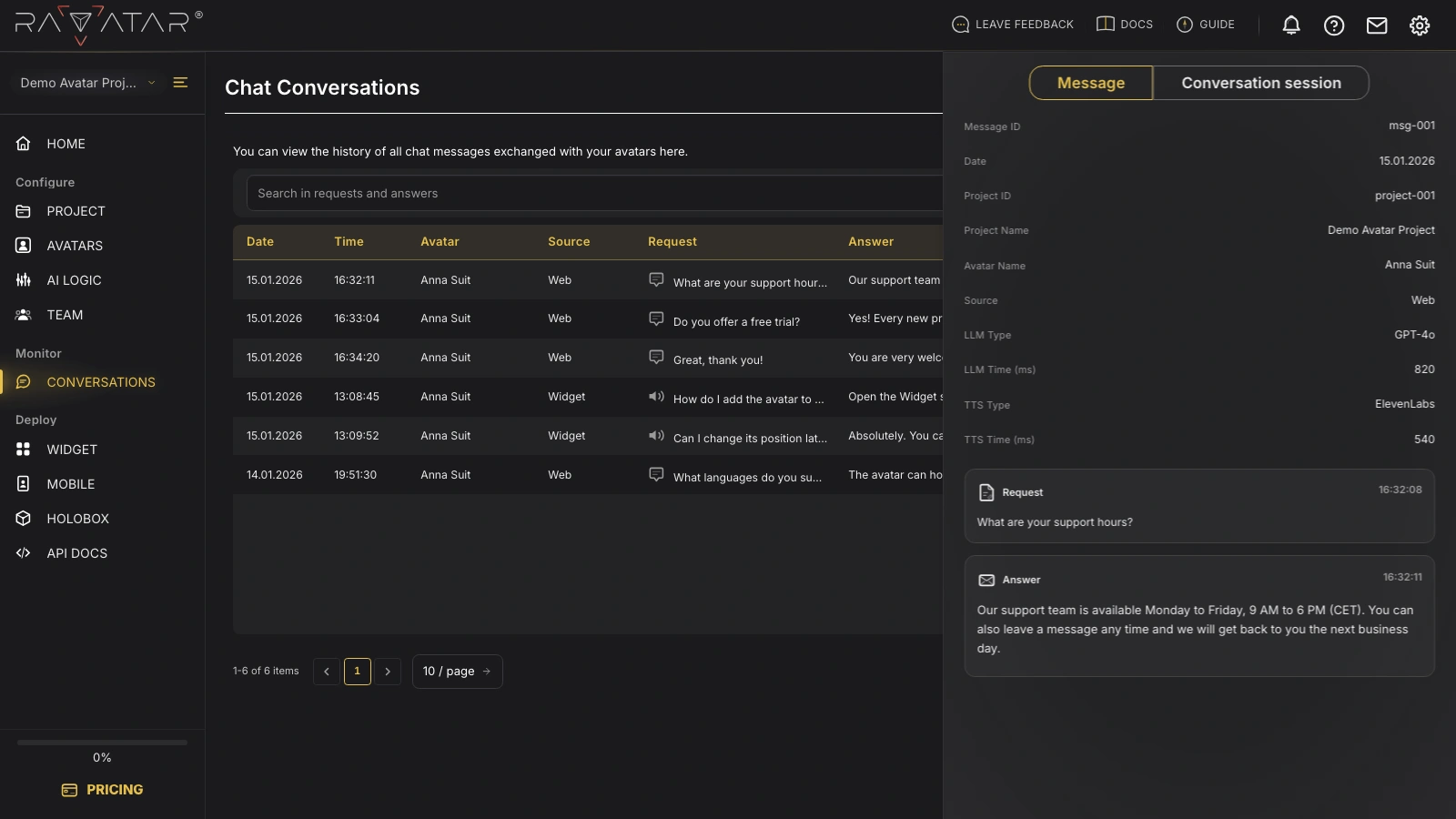
The panel lists the message metadata – Message ID, Date, Project Name, Avatar Name, Source, and the timing of the LLM, TTS, and STT steps – followed by the visitor’s Request and the avatar’s Answer as separate cards. When the request arrives as audio, its card is labeled Request (Transcription).
The panel opens on two tabs: Message shows the single exchange you clicked, and Conversation session opens the whole conversation it belongs to.
Conversation Session
Switch to the Conversation session tab to replay the entire conversation, shown as a chat thread.
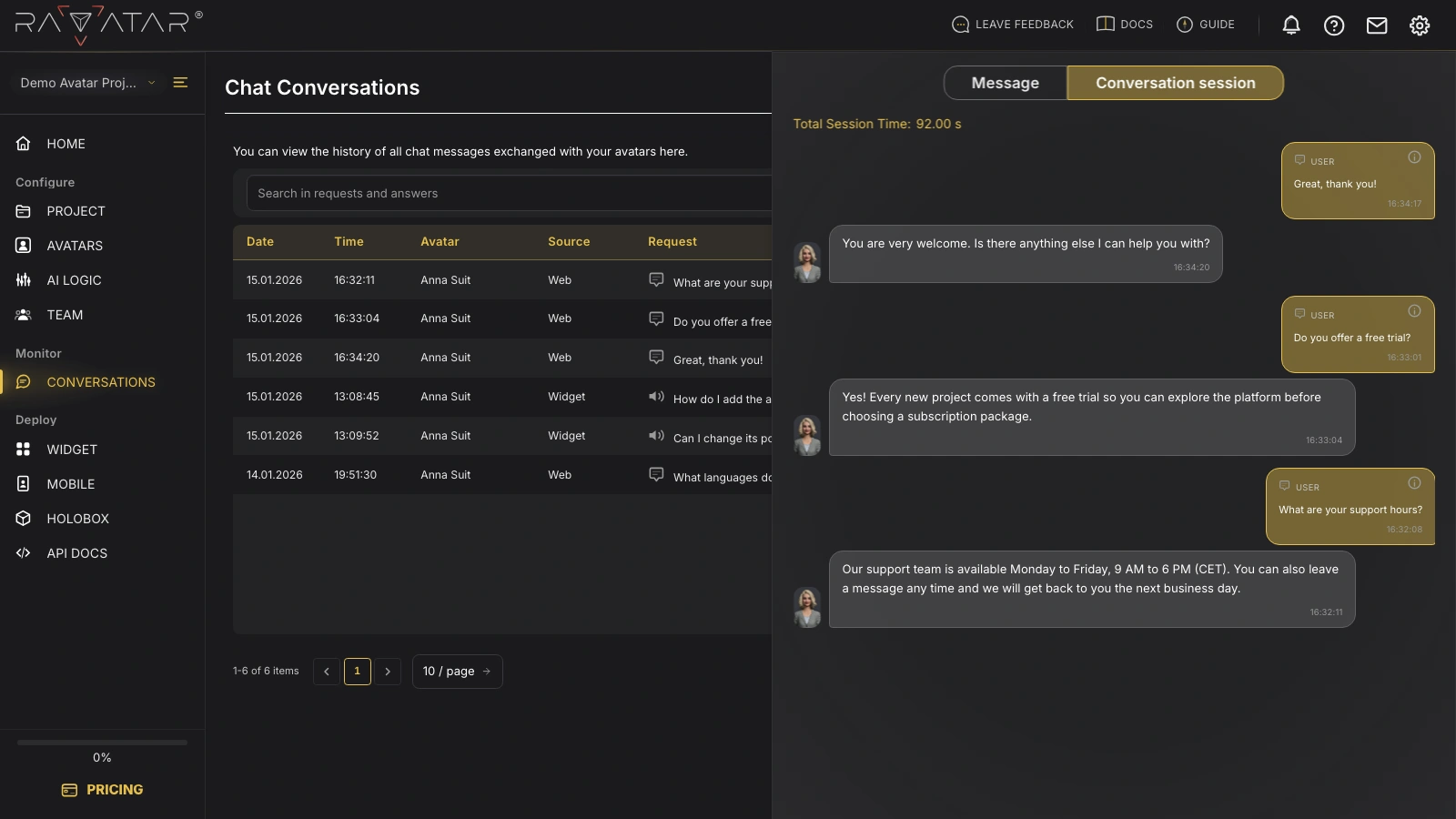
Every visitor message and avatar reply appears in order, with the avatar’s icon beside its answers. The header shows the Total Session Time for the whole conversation.
The Conversation session tab is only available when the selected message is part of a session. A standalone message opens with just the Message tab.
Conversations are generated wherever your avatar is live, so once you have reviewed them you can fine-tune where it appears in the WIDGET section, or manage who else can see this project in TEAM.