Avatar Preview Display
The right-side area of the wizard contains the Avatar Display panel, which lets you see your selected AI avatar in action. This panel remains visible regardless of which section of the wizard you are currently in.
To start a conversation through the preview display panel, make sure that your project has an active subscription with conversation minutes remaining – otherwise the panel prompts you to activate or upgrade it.
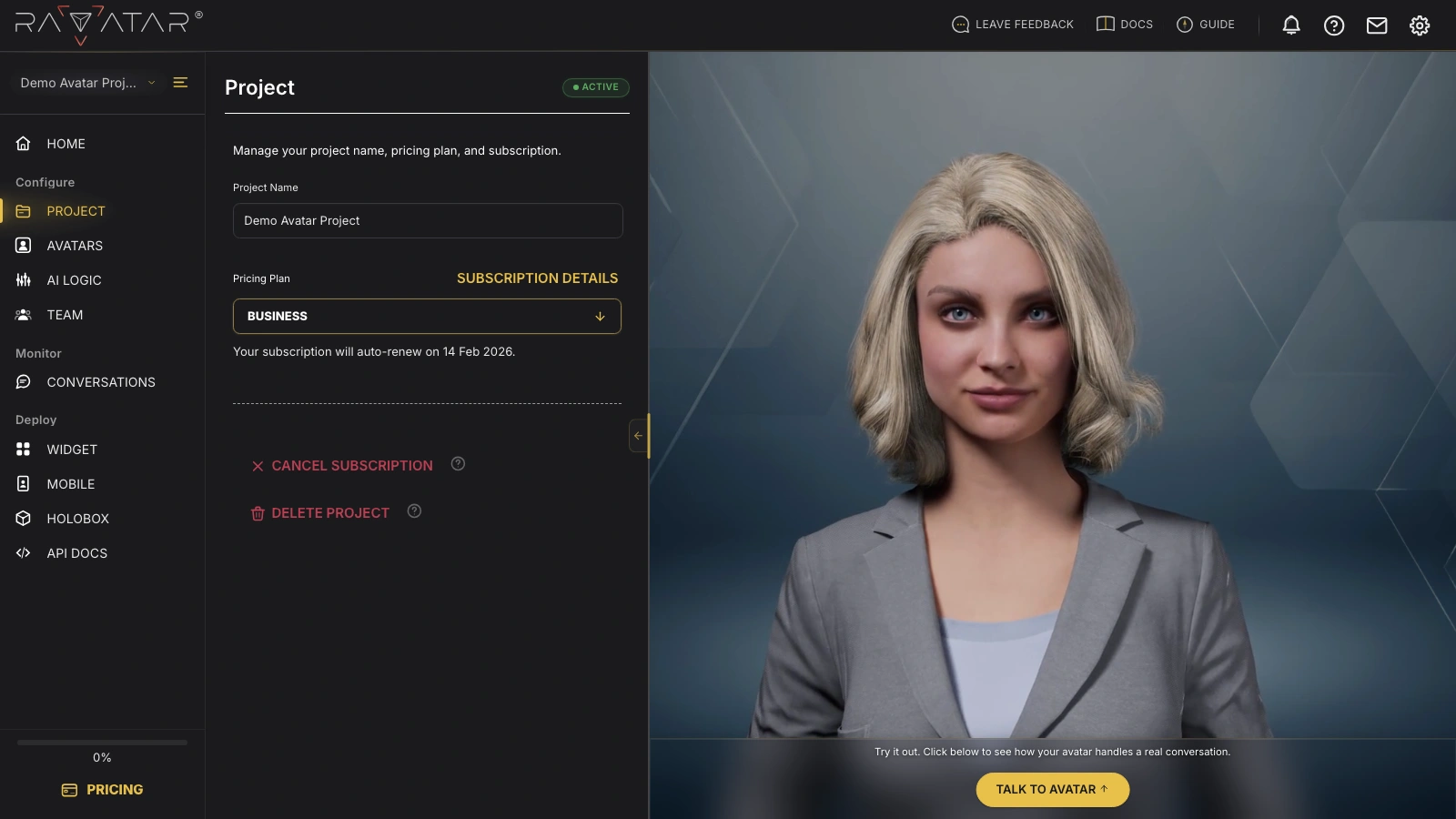
You can also click the small arrow on the left edge of the frame to expand the preview area to full width, temporarily hiding the configuration panel for a more immersive view (the adjacent button swaps the two panes if you prefer the preview on the left):
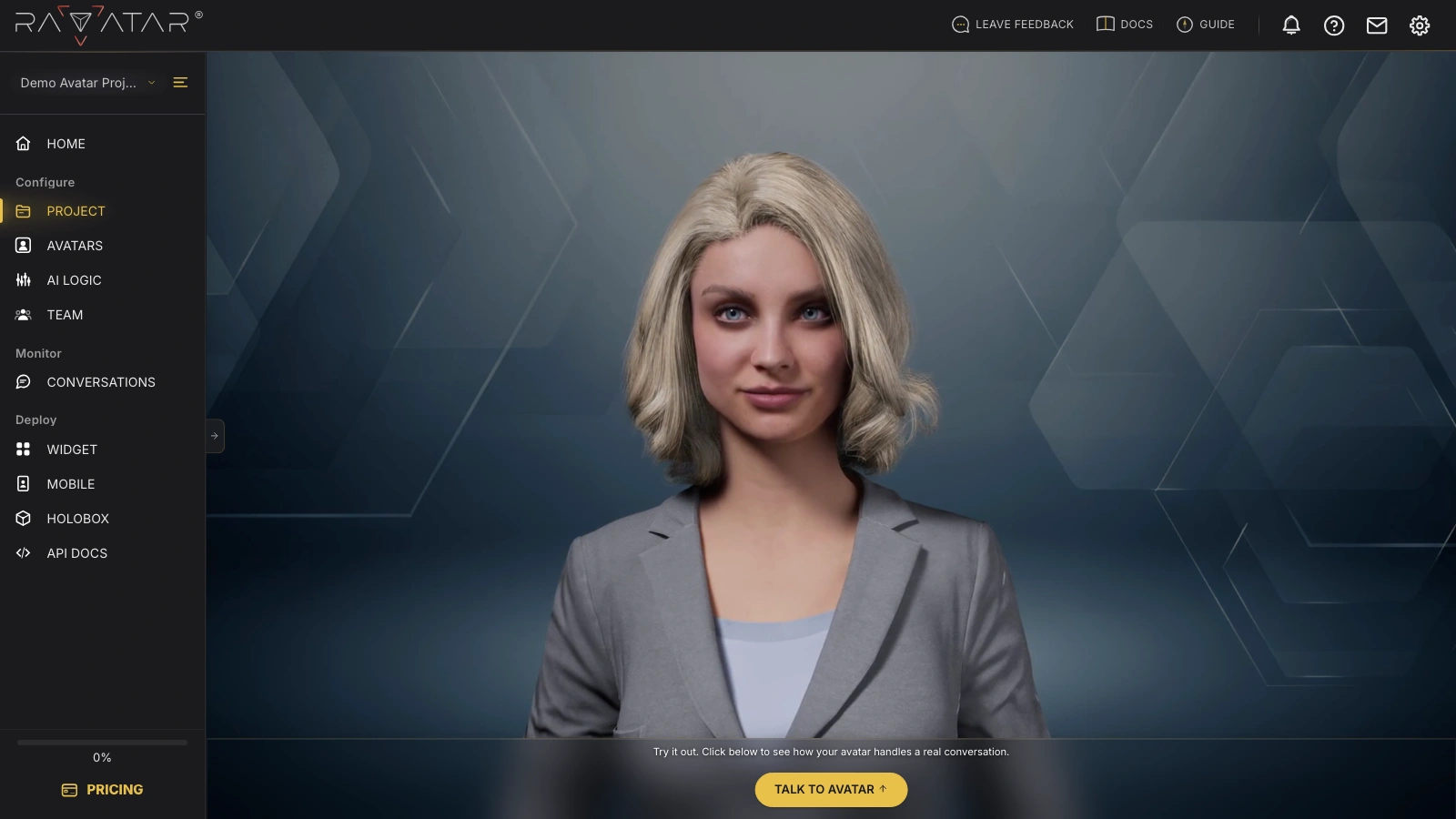
This panel features two ways to experience your avatar:
Video Preview Mode
Enabled by default, this mode shows your avatar in a 3D animation with subtle movements like blinking, smiling, and micro-expressions, giving you a clear idea of how it will appear to users.
It’s particularly helpful when switching between avatar appearances within the AVATARS section, allowing you to examine all visual details and pick the one that fits best.
The Talk to Avatar button below the avatar switches the view from video to an interactive real-time conversation. If your project has more than one active language, clicking it first opens the Pick your avatar’s language menu, where you choose the language to interact in (the available options depend on the languages enabled in your TEXT TO SPEECH settings):
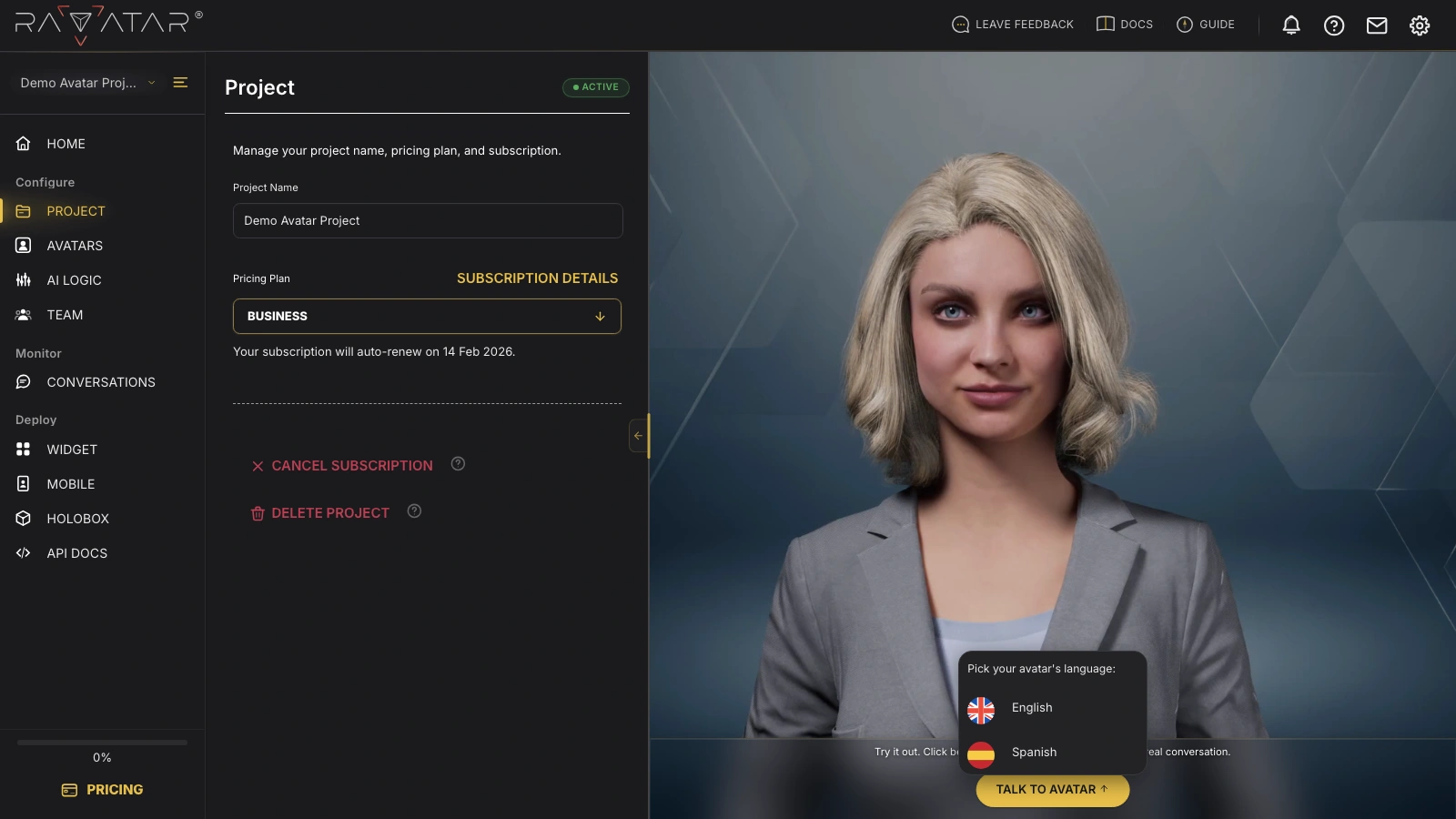
Once you select a language (or right away, if only one is enabled), you’ll enter Live Preview mode.
The Talk to Avatar button becomes available once your project changes are saved – if it appears inactive, save or discard the pending edits first.
Live Preview Mode
This mode starts a real-time conversation with your AI avatar right in the preview panel, letting you test its behavior exactly as your audience will experience it – the same interface your visitors get once the avatar is integrated as a widget. The avatar stays on screen and replies by voice, while you type in the input field or hold the microphone icon to speak; the full conversation history, both text and voice, stays available for the whole session.
Here you can also check how your avatar handles live voice conversations when streamed to a holobox.
Live interaction with your AI avatar through the preview panel is counted toward the conversation minutes included in your subscription.
Let’s take a quick look at the control options the widget frame provides:
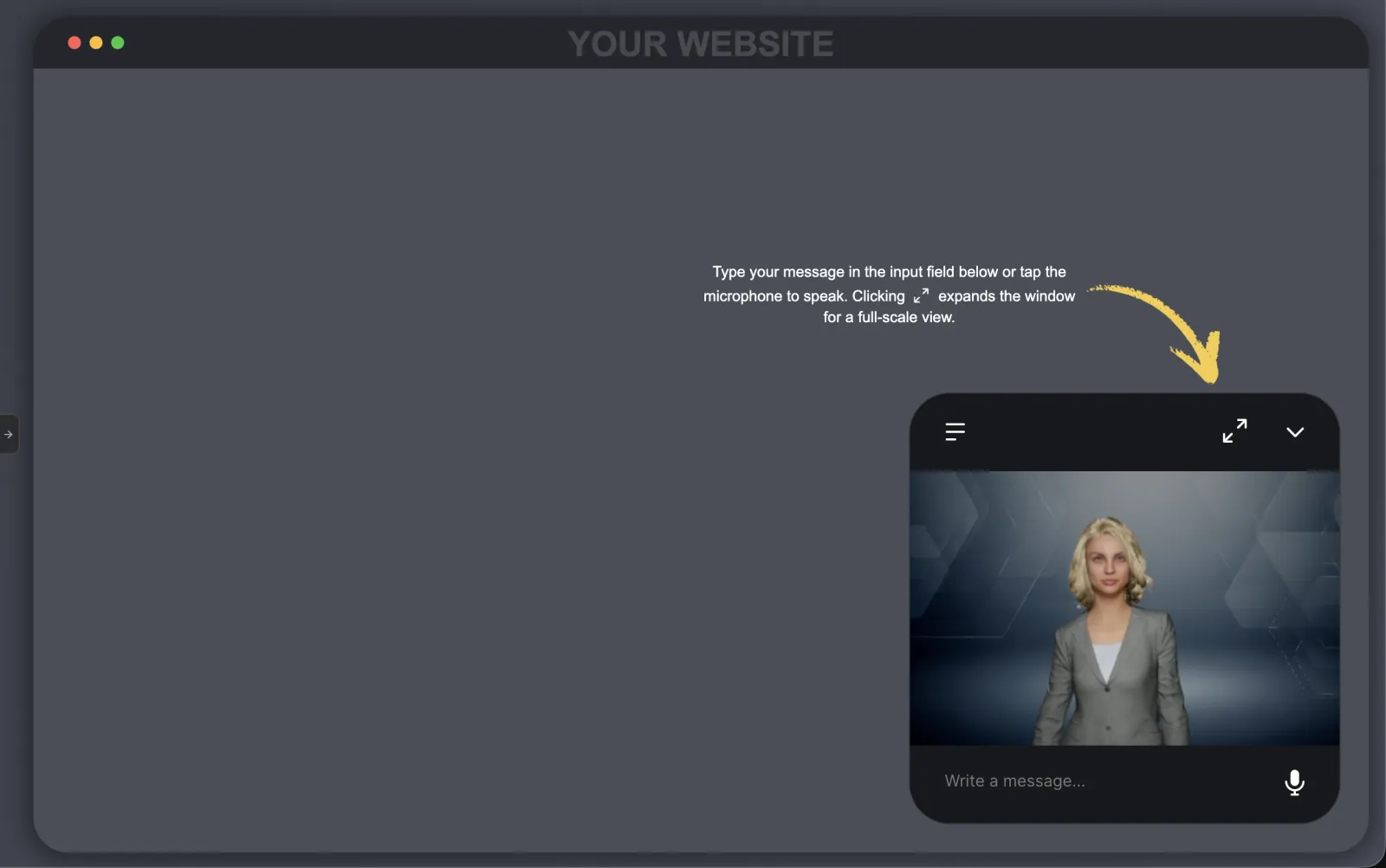
- Menu (≡) – Opens the Settings panel, where you switch the avatar conversation language and choose between a Light or Dark color theme for the chat.
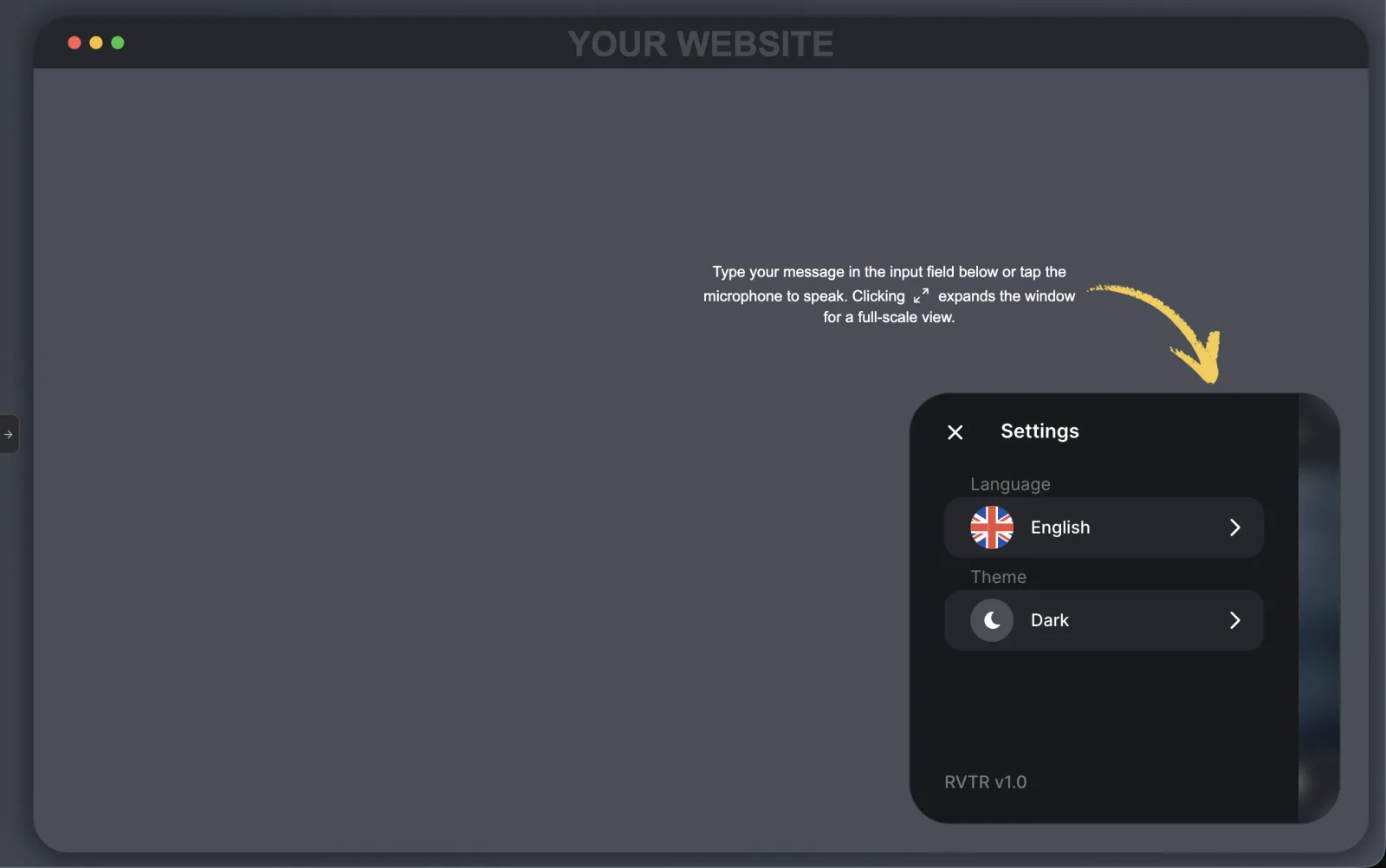
- Input area – Type a message in the text field or hold the microphone icon to speak.
- Fullscreen (⤢) – Expands the widget to full width, showing the real-time avatar and the chat transcript side by side.
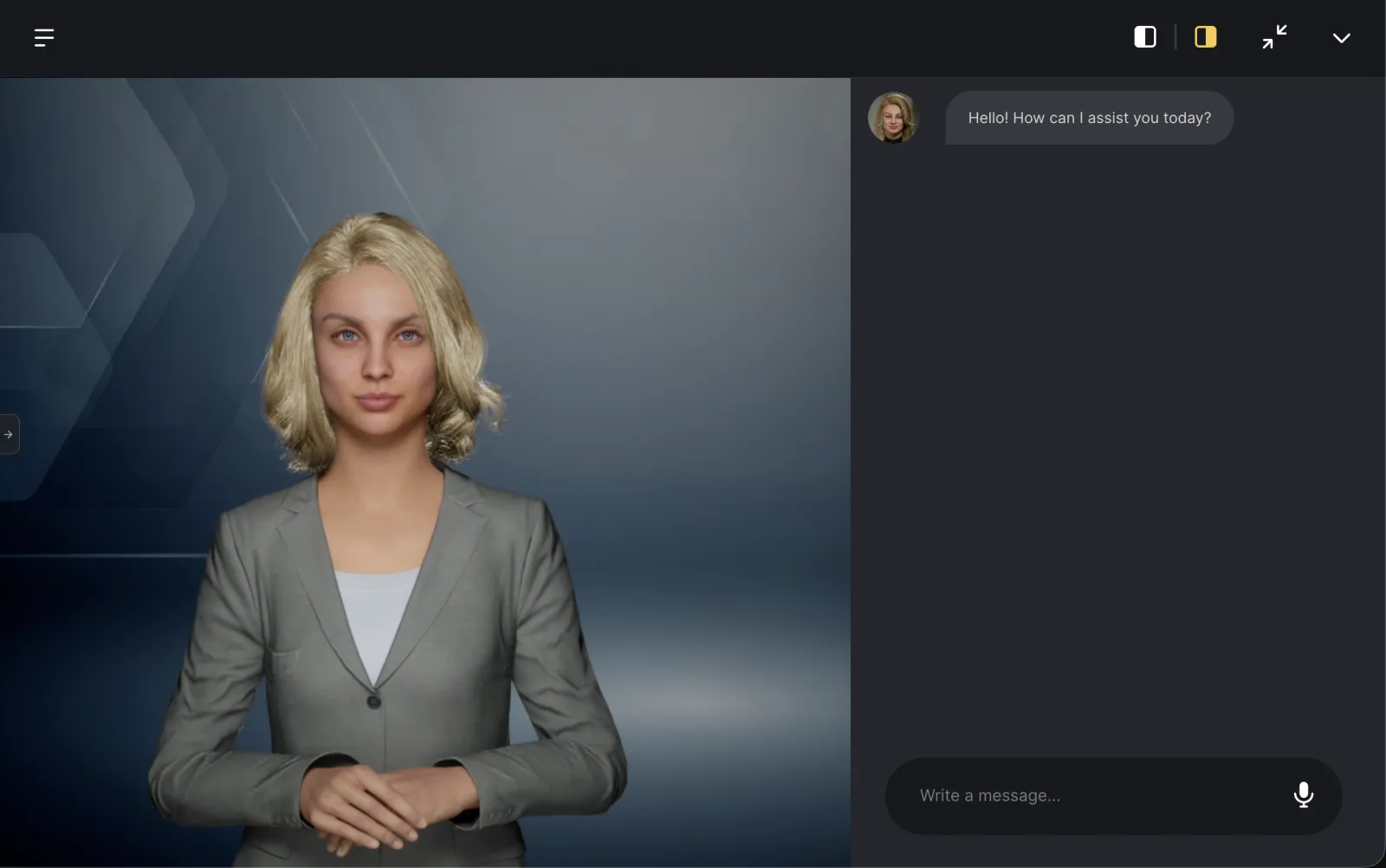
In the expanded view you can toggle the placement of the avatar and chat panels with the view switch buttons (highlighted above) to match your preferred layout, and use the inward arrow icon to shrink the window back to the corner view.
- Minimize (⌄) – Collapses the widget back into its icon view while preserving the ongoing conversation, unless the page is refreshed.
To exit Live Preview mode and return to the animated avatar view, click the Stop testing button at the bottom of the frame.
On the WIDGET page, the same pair of actions is labeled See in Action and Exit Demo, and the preview opens as a website demo with the widget bubble in the corner – matching what your visitors see on an embedded page.
This way, the built-in preview display lets you validate your avatar’s behavior without leaving the wizard, including testing changes after connecting a custom LLM, switching to a custom voice, linking external AI agents, or adjusting other advanced configuration options.