Bring Your Own MetaHuman
If you already have a MetaHuman character of your own, our team can integrate it into RAVATAR and run it as the AI avatar of your project. This page explains what your character has to meet before that integration can start, and what to send us.
The character is adapted to the existing RAVATAR pipeline – the pipeline is not changed for each new character. Everything below exists so that external characters stay compatible with our animations, clothing, Blueprints and shared systems.
- Body Preset
- How to Deliver the Character
- What Not to Modify
- Pre-Delivery Checklist
- Exceptions
- Delivering Your Assets
Body Preset
Every character must use a standard MetaHuman body preset, with the standard skeleton and standard proportions:
| Character | Required body preset |
|---|---|
| Male | Medium / Average |
| Female | Tall / Underweight |
Pick the preset that matches your character:
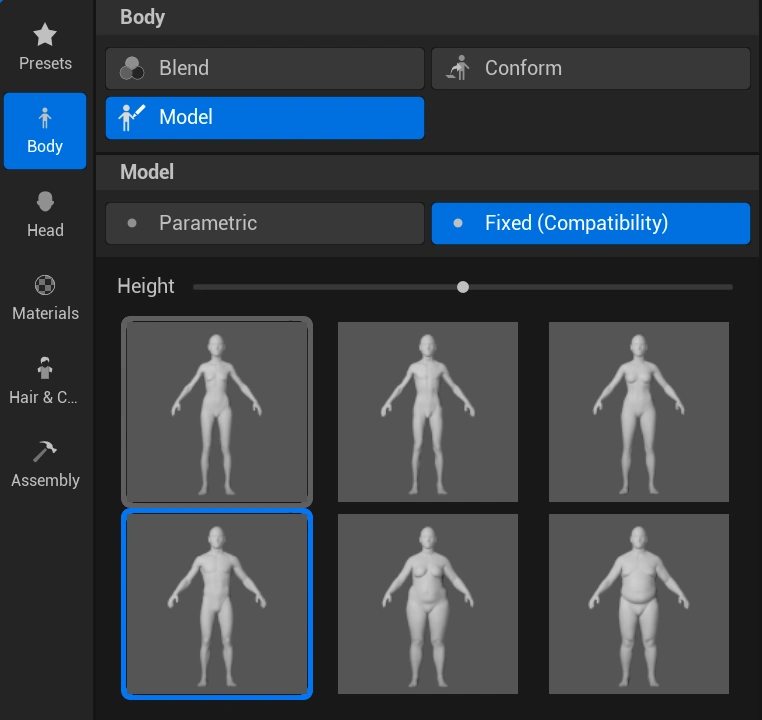
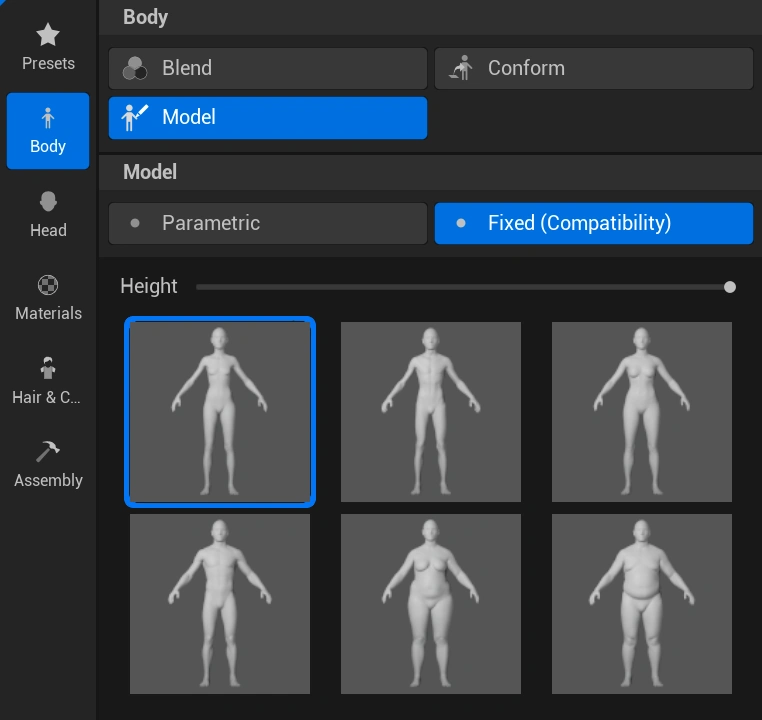
Do not use custom skeletons or modified proportions, and do not scale the character manually inside the Blueprint. If the correct preset is used, height and proportions will match the rest of the RAVATAR characters.
How to Deliver the Character
There are two ways to hand the character over, depending on how far you have taken it.
Option A – MetaHuman Character Asset (Preferred)
Send the original MetaHuman Character asset only. We run the assembly on the RAVATAR side with our own project settings, which gives the best control and the best compatibility.
Option B – Assembled MetaHuman
If the character is already assembled, send:
- the complete folder with the assembled MetaHuman and all character assets;
- the exact path of that folder inside the Unreal Engine project.
Keep the original folder structure. Do not rename, move or reorganize anything after assembly, because this breaks asset references.
What Not to Modify
The skeleton is what keeps your character compatible with our shared animations, so leave these untouched:
- the MetaHuman bone hierarchy;
- bone names;
- the standard skeleton scale.
Do not delete bones or add custom bones to the main skeleton.
Pre-Delivery Checklist
Test the character in a RAVATAR scene and confirm every point below before you hand it over.
Face
- Facial rig and facial animation work, including ARKit expressions.
- Eyes, eyelids, teeth and tongue behave correctly.
- No intersections during facial animation.
Body
- Idle, walking, sitting, arm movement and head rotation play correctly.
- No broken skin weights and no deformation at shoulders, neck, hands or fingers.
- No body or head intersections.
Clothing
- Clothing is built for the required body preset.
- Clothing needs no change to the base MetaHuman skeleton.
- Chaos Cloth simulation tested separately, if it is used.
Hair and Groom
- Hair is built for the MetaHuman Groom system or the hair workflow agreed with the RAVATAR team.
- Groom attachment, hairline and physics are correct.
- LODs, hair materials and performance are acceptable.
- Hair behaves correctly during head and body animation.
Materials
- Existing RAVATAR and MetaHuman master materials reused wherever possible.
- All materials render correctly, including normal maps and roughness.
- Texture resolution is appropriate.
Exceptions
Custom skeletons, non-standard proportions, custom rigs and custom clothing systems all need approval before integration. Agree them with the RAVATAR team first.
Delivering Your Assets
Once your character passes the checklist, host the files yourself and send RAVATAR a link to them:
- Upload the MetaHuman Character asset (Option A) or a ZIP of the assembled character folder (Option B) to a cloud storage such as Google Drive.
- Turn on link sharing so that anyone with the link can view and download the files.
- In Genesis Studio, open the AVATARS wizard section, click the Create your own tile at the end of the characters list, and choose Your MetaHuman.
- In the form that opens, paste the link into Link to your files (required, must start with
https://) and use Description to tell us about the character: who it is, anything custom (hair, clothing, rig) and – for an assembled MetaHuman – the exact path of the folder inside the Unreal Engine project. - Click Send request. The RAVATAR team reviews the character and follows up by email.
A link without sharing enabled is the most common reason a request stalls.
No MetaHuman yet? Our team can build a digital human from your photos instead – see Custom Avatar.
If you’d rather start from a character that is ready to go, the AVATARS section lists the AI avatars you can select in Genesis Studio right away.