ChatGPT
ChatGPT is the default engine in the MODEL section – OpenAI’s conversational AI. It works out of the box with the built-in model, and you can also link a model from your own OpenAI account, as described below.
Linking Custom OpenAI GPT Model
Beyond the standard options, you can connect your own OpenAI GPT model via API. With a custom model, your digital human can speak in your brand’s voice and apply domain-specific knowledge that fits its role in your project.
To do this, choose ChatGPT as the engine and enable the 'Use own OpenAI API key' toggle below.
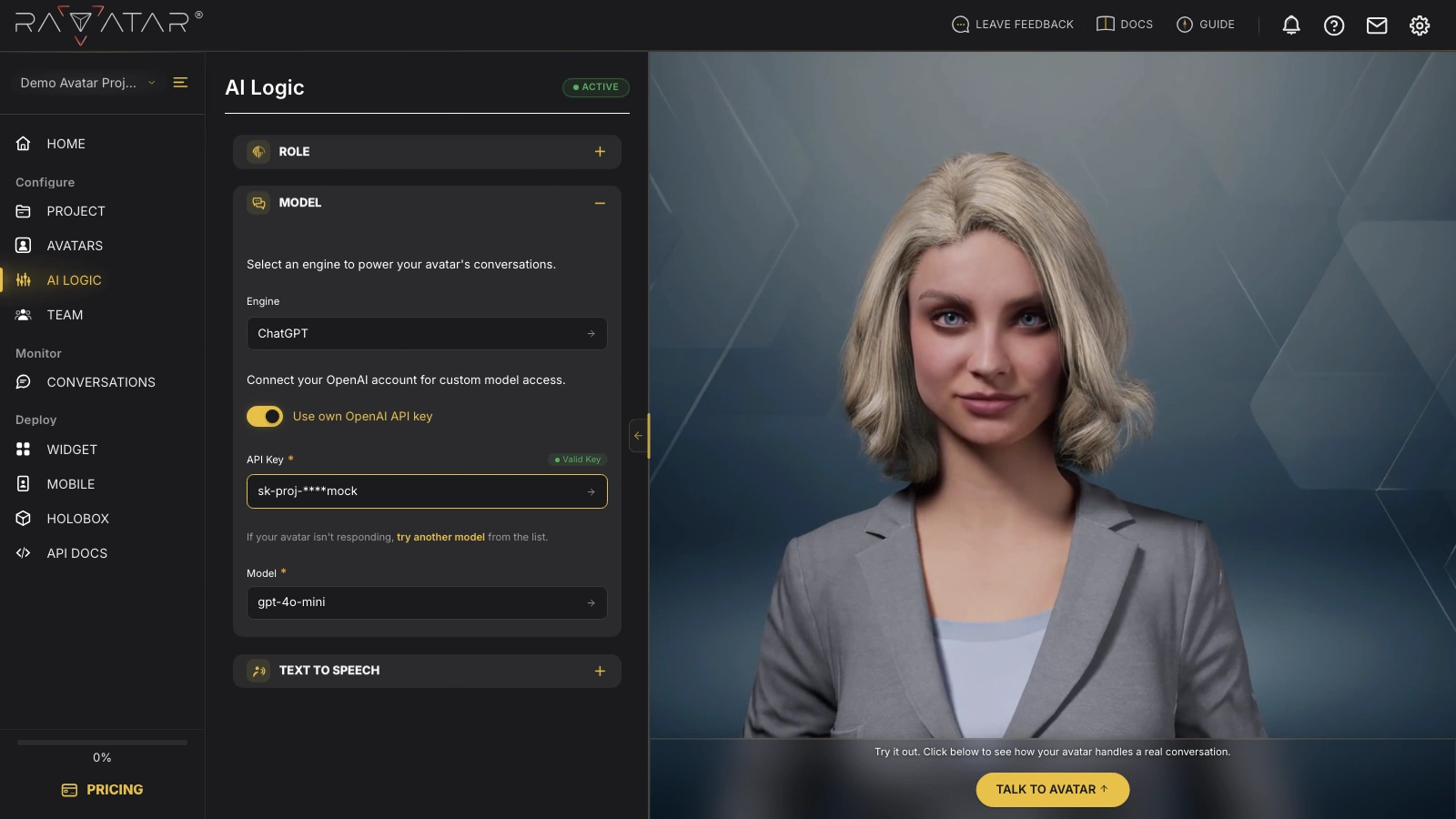
In the API Key field that appears, enter your OpenAI API key, created in the OpenAI dashboard (or pick one you’ve saved earlier from the drop-down list). The key is verified automatically, and its status appears next to the field as a Valid Key or Invalid Key badge.
Using your GPT model via API typically incurs additional charges from OpenAI based on token usage.
Once the key is validated, the system retrieves the list of models available in your OpenAI account, including base models and your fine-tuned versions.
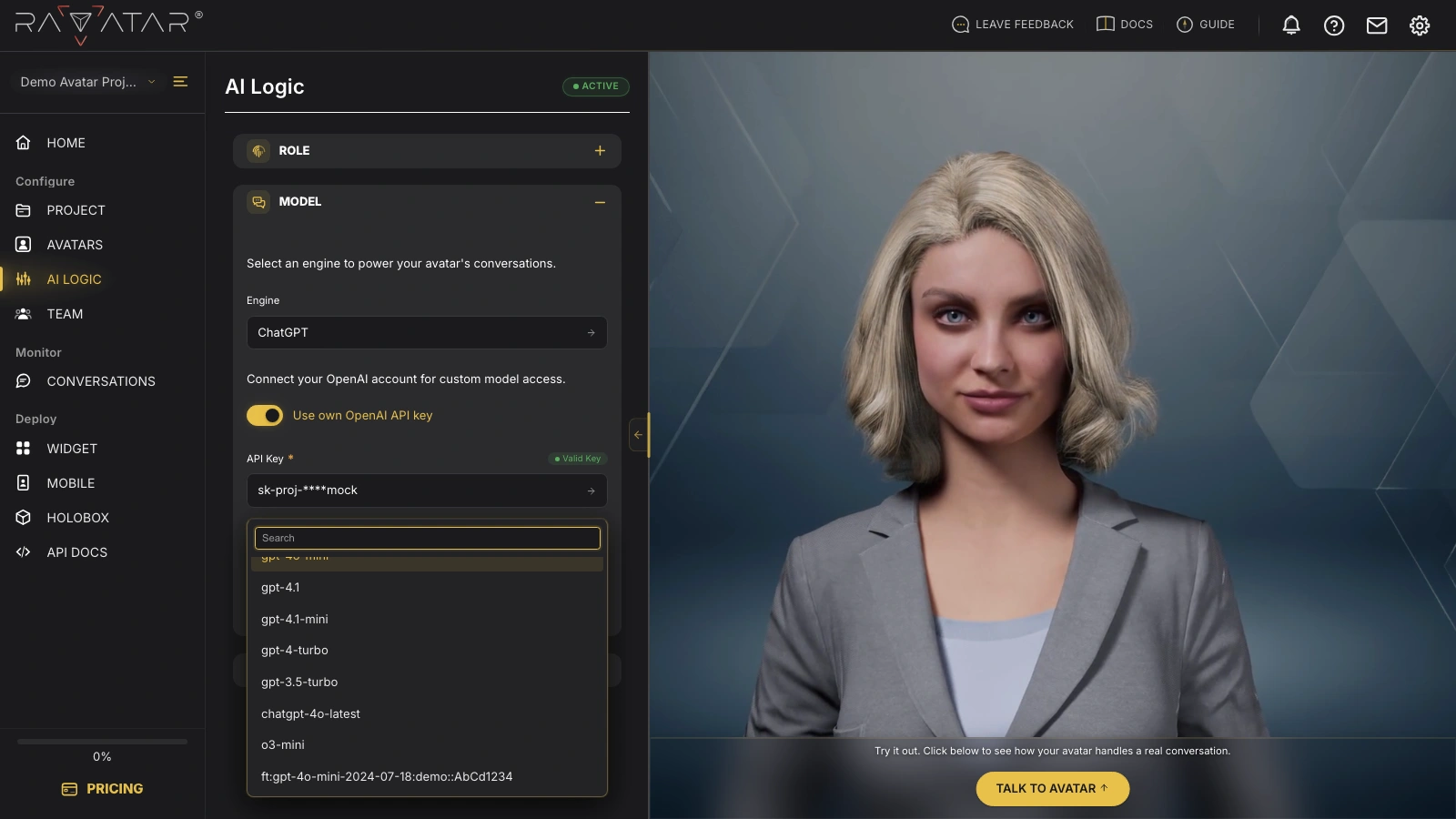
Select the Model you need from the list that appears (use the built-in search field for quick navigation – e.g., type mini to find the gpt-4o-mini model), and click Save to apply the new project configuration.
You can now talk to your AI avatar in the Live Preview panel to evaluate the changes. If the avatar does not respond as expected, see the instructions on how to choose the right custom GPT model.
You can switch back to one of the integrated engines at any time by turning the 'Use own OpenAI API key' toggle off and saving your project.
How to Choose the Right Custom GPT Model
If your AI avatar remains silent after being linked to your custom OpenAI LLM, it’s likely you’ve selected the wrong option from the retrieved list of supported models.
Here are a few tips for picking the right model:
- For custom fine-tuned models, OpenAI assigns names starting with the ft: prefix. These models usually appear at the bottom of the model selection list and do not retain base model labels in their names.
- If you haven’t fine-tuned a custom model yet, or if you’d prefer to use a different GPT version than the one provided in Genesis AI Avatar Studio by default, you can choose any base GPT model by its official OpenAI name (e.g., gpt-4o-mini, gpt-4.1, and so on).
After selecting the model, click Save at the bottom of the wizard before talking to your AI avatar to verify the changes.
If your AI avatar still doesn’t respond after following these steps, contact the RAVATAR team at support@ravatar.com or use the Support option in the dashboard (accessible via the envelope icon in the top-right corner).