ElevenLabs
With ElevenLabs selected as the provider, the avatar uses a single voice across all selected languages. By default, the avatar speaks with one of the voices provided by the RAVATAR corporate ElevenLabs account – expand the Voice drop-down and choose the one you prefer.
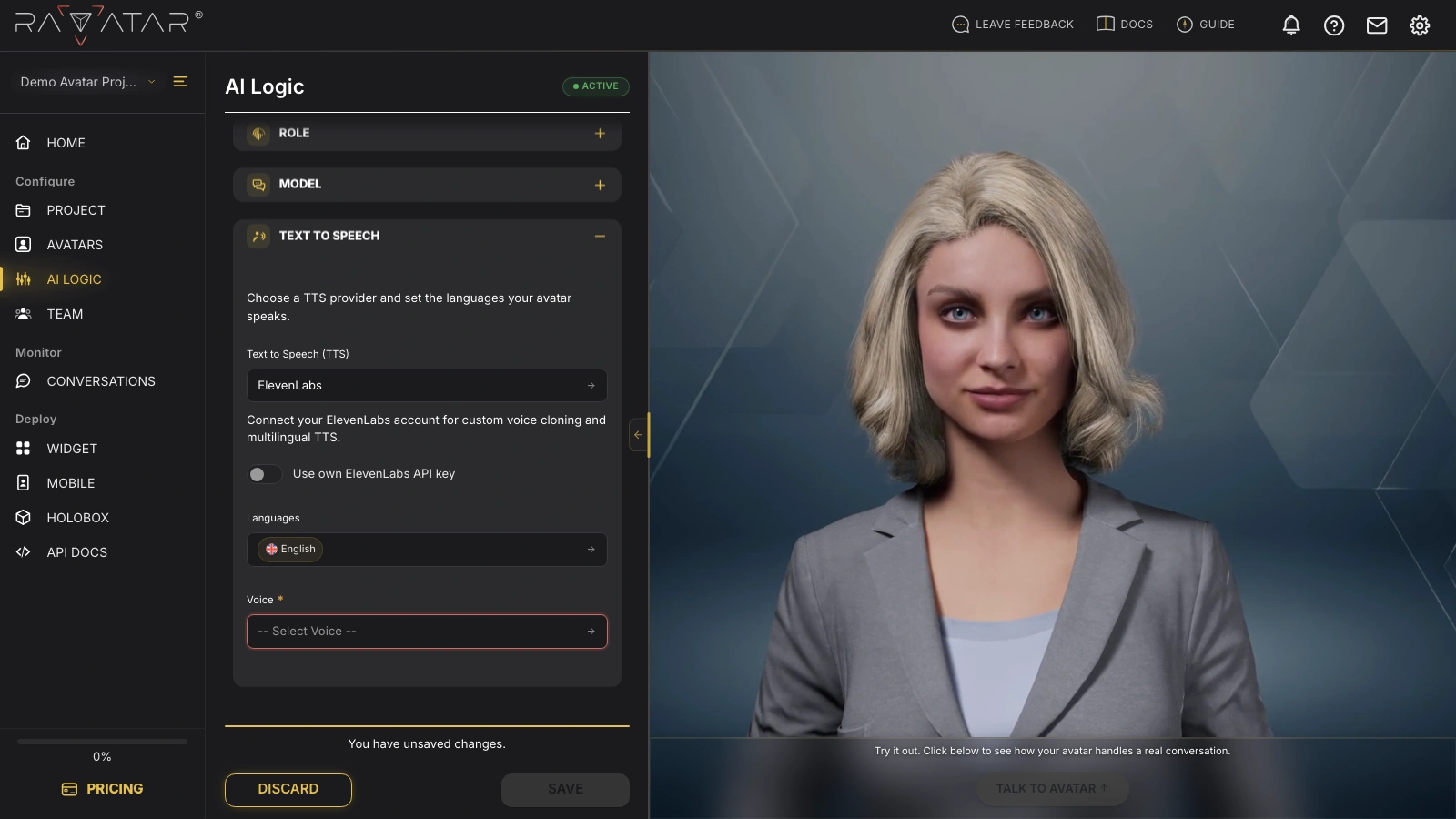
The voice library includes both male and female options, labeled by gender. You can also listen to an audio sample for each option.
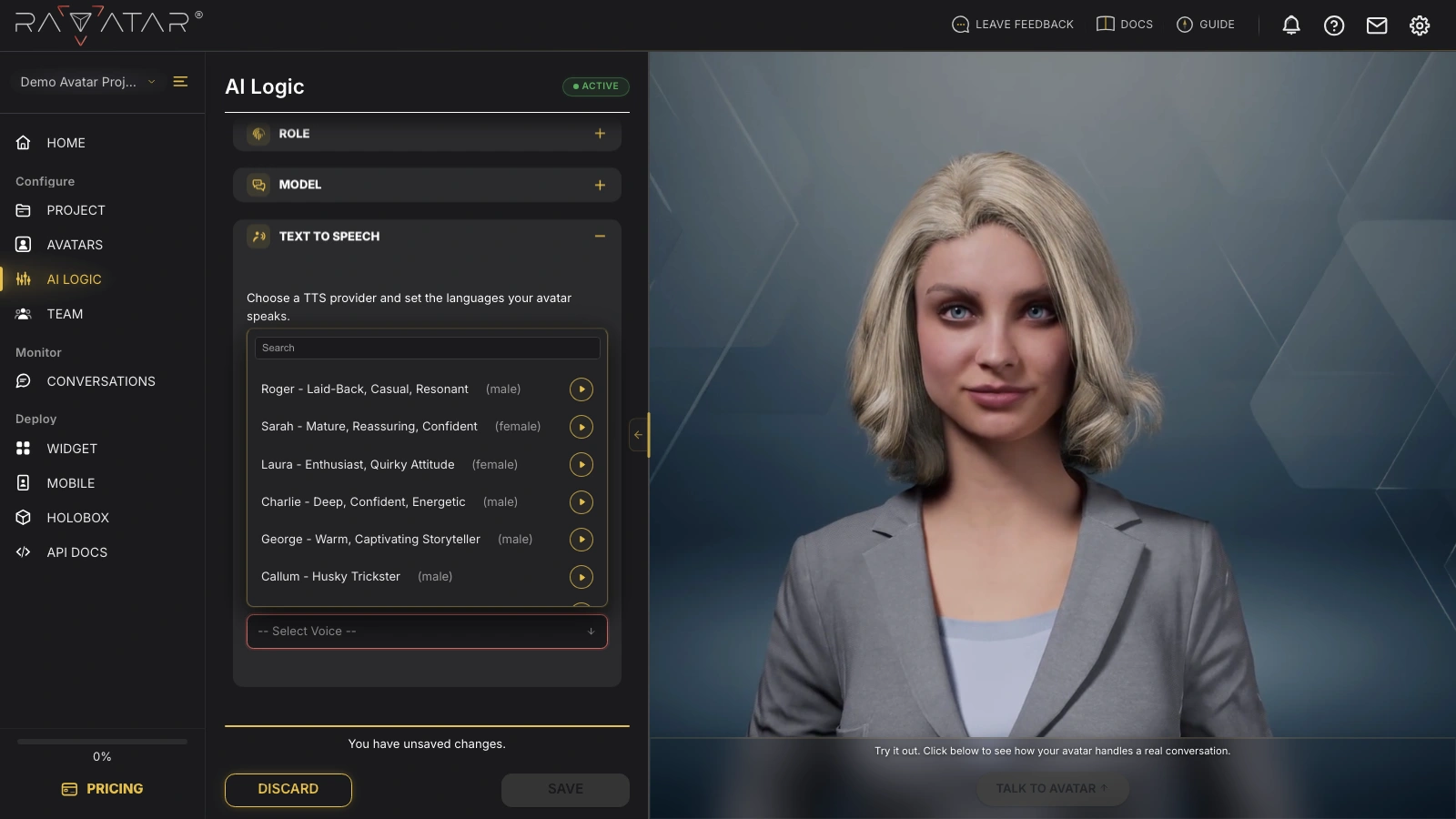
Once you’ve selected a voice, click Save to apply the configuration.
Connecting a Custom Voice
Genesis Studio can also connect custom AI voices from your own ElevenLabs account, so your avatar speaks with a voice that matches your brand tone.
To set this up, enable the 'Use own ElevenLabs API key' toggle. In the API Key field that appears, paste the API key from your ElevenLabs dashboard (found under the Developers → API Keys section) and click Apply. Genesis Studio verifies the key automatically and shows a Valid Key or Invalid Key badge next to the field.
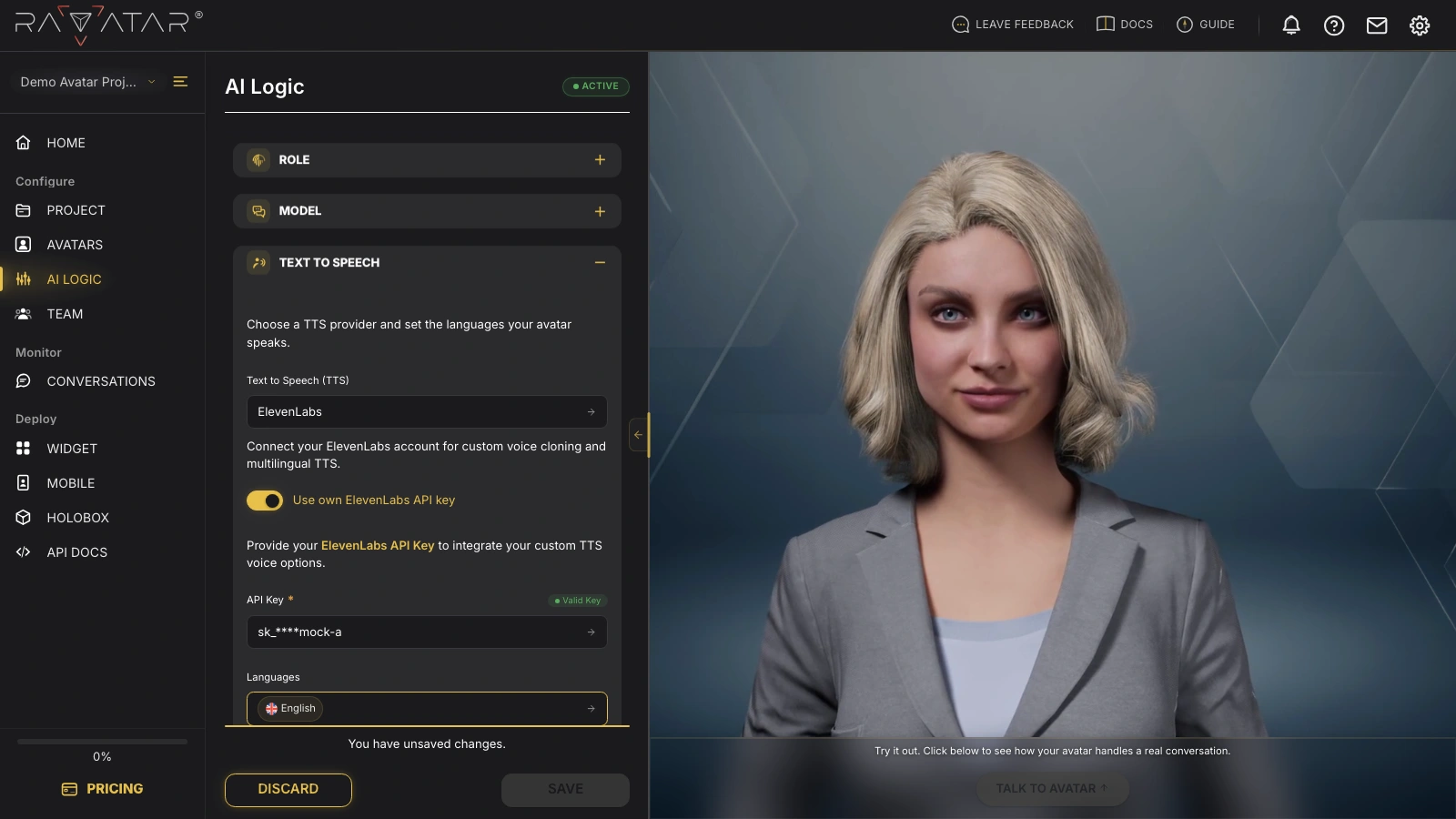
After a successful connection, two more fields appear:
- Languages – Tick the boxes next to the languages your avatar should speak.
- Voices – Choose one of the AI voices retrieved from your ElevenLabs account.
Once you’re done, click Save to apply the changes to your project. Now your AI avatar will speak in all selected languages with your custom voice from ElevenLabs.
With your own key connected, speech generation runs through your ElevenLabs account, so ElevenLabs bills that usage according to your plan with them. The default voices from the RAVATAR corporate account carry no such extra cost.
With the voice configured, your in-platform avatar logic is complete – try a real-time conversation in the Live Preview panel, or continue to the TEAM section to invite collaborators to your project.