TEXT TO SPEECH
Here’s where you can manage speech generation for your AI avatar: pick a TTS (text-to-speech) service provider and set the languages your avatar speaks. The TEXT TO SPEECH panel is the third section of the AI LOGIC wizard step, shown when the Logic Source is set to AI Models.
This section covers:
Choosing a TTS Provider
Start by expanding the Text to Speech (TTS) drop-down menu to select your preferred service provider:
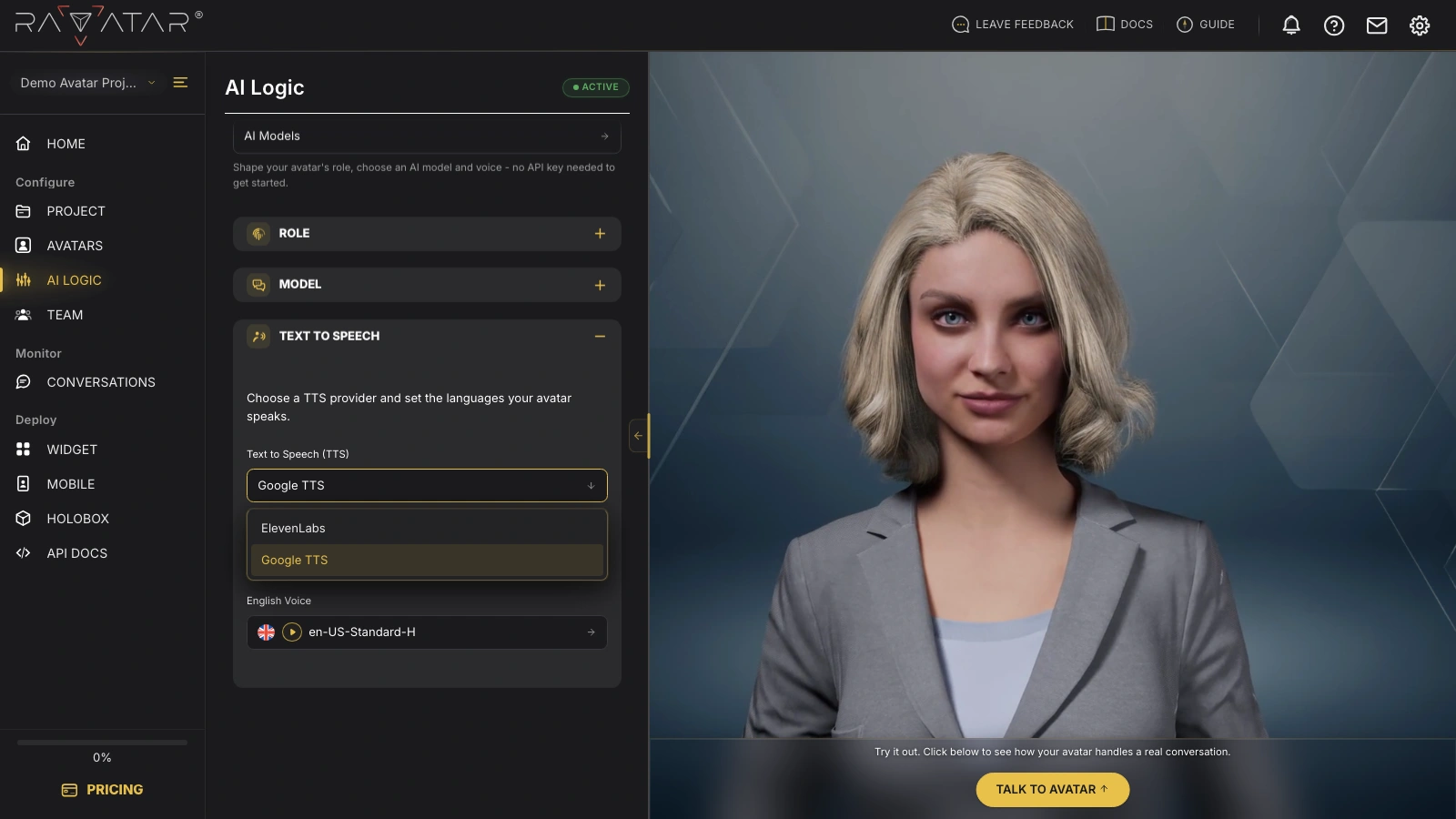
- Google TTS – supports voice output in over 50 languages, with multiple voice options for each language. See the Google TTS guide.
- ElevenLabs – supports 30+ languages, all spoken with one selected voice; custom voice setup is available. See the ElevenLabs guide.
The practical difference: Google TTS lets you pick a separate voice for every language, while ElevenLabs keeps one voice across all of them – a good fit when you want the avatar to sound identical in every language, or when you plan to connect a voice of your own.
The TEXT TO SPEECH panel appears only for engines that generate text replies – ChatGPT and Azure OpenAI. Speech-to-speech engines (OpenAI Realtime, Gemini Live, Gemini Live Native Audio) produce voice on their own, so the panel is hidden while one of them is selected.
Setting the Languages
Next, open the Languages list and tick the ones your avatar will speak, then click Save below. The selected languages appear in the field as flag chips.
After saving, the selected languages also become available in the Talk in menu within the Avatar Display section on the right. There you can pick one and talk to your avatar in real time in that language. Live interaction via the preview panel counts toward the conversation minutes included in your subscription.
With the provider and languages in place, continue to the guide for your chosen service – Google TTS or ElevenLabs – to assign the voices your avatar will speak with.