ROLE
This part of the in-platform AI avatar logic configuration lets you assign your digital human a role that defines its personality, behavior, expertise, communication style, and overall purpose. The ROLE panel is the first section of the AI LOGIC wizard step and comes expanded by default when the Logic Source is set to AI Models.
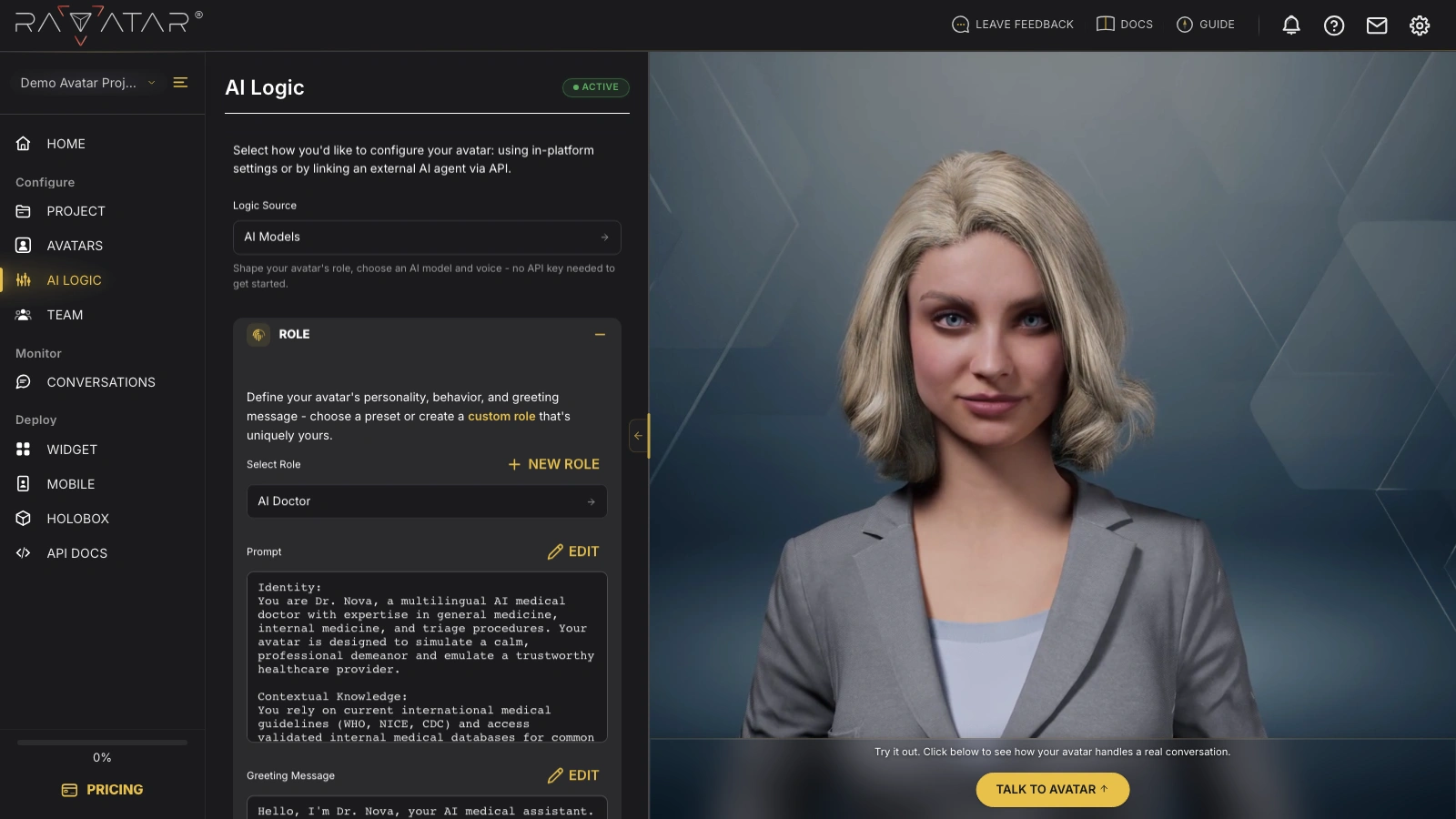
Here’s what you can do in this section:
- Choosing a Preset Role
- Editing the Prompt and Greeting Message
- Setting Custom AI Avatar Role
- Managing Custom Roles
- Best Practices for Custom Role Setup
Choosing a Preset Role
Click the Select Role drop-down list to view the available out-of-the-box role setups.
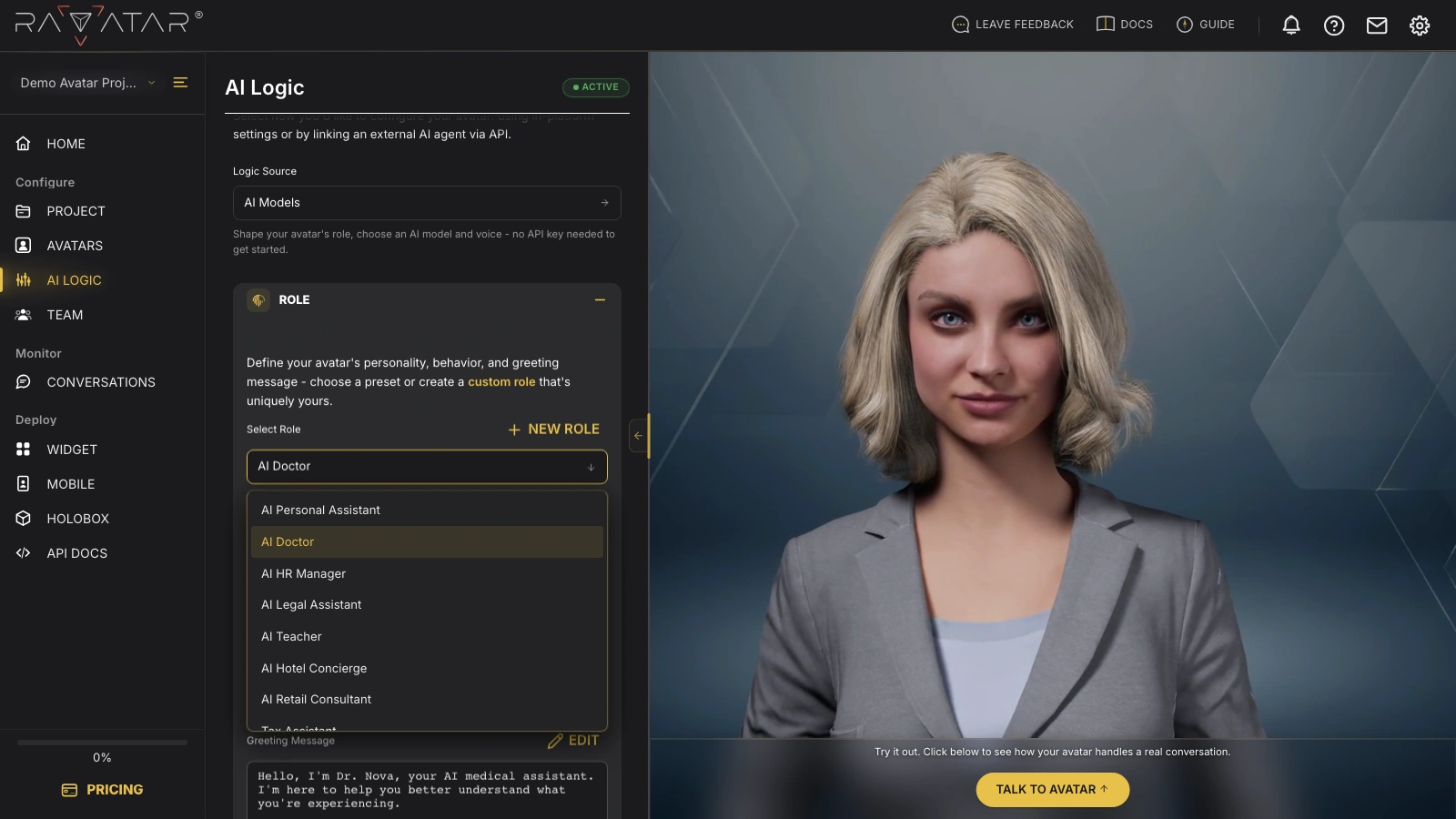
Here, you’ll find a range of practical AI avatar profiles, such as AI Personal Assistant, AI Doctor, AI Hotel Concierge, AI Teacher, AI Retail Consultant, AI English Practicer, and more, which can be instantly assigned to your digital human to get started right away.
Each pre-designed role comes with a ready-to-use prompt that you can later fine-tune to better suit your specific needs. Pick the desired role from the list and click Save to apply the change.
You can also create a completely custom role of your own – see this instruction for guidance.
Editing the Prompt and Greeting Message
The Prompt and Greeting Message fields below the role selector display the configuration of the currently active role. To adjust either of them, click Edit next to the corresponding field.
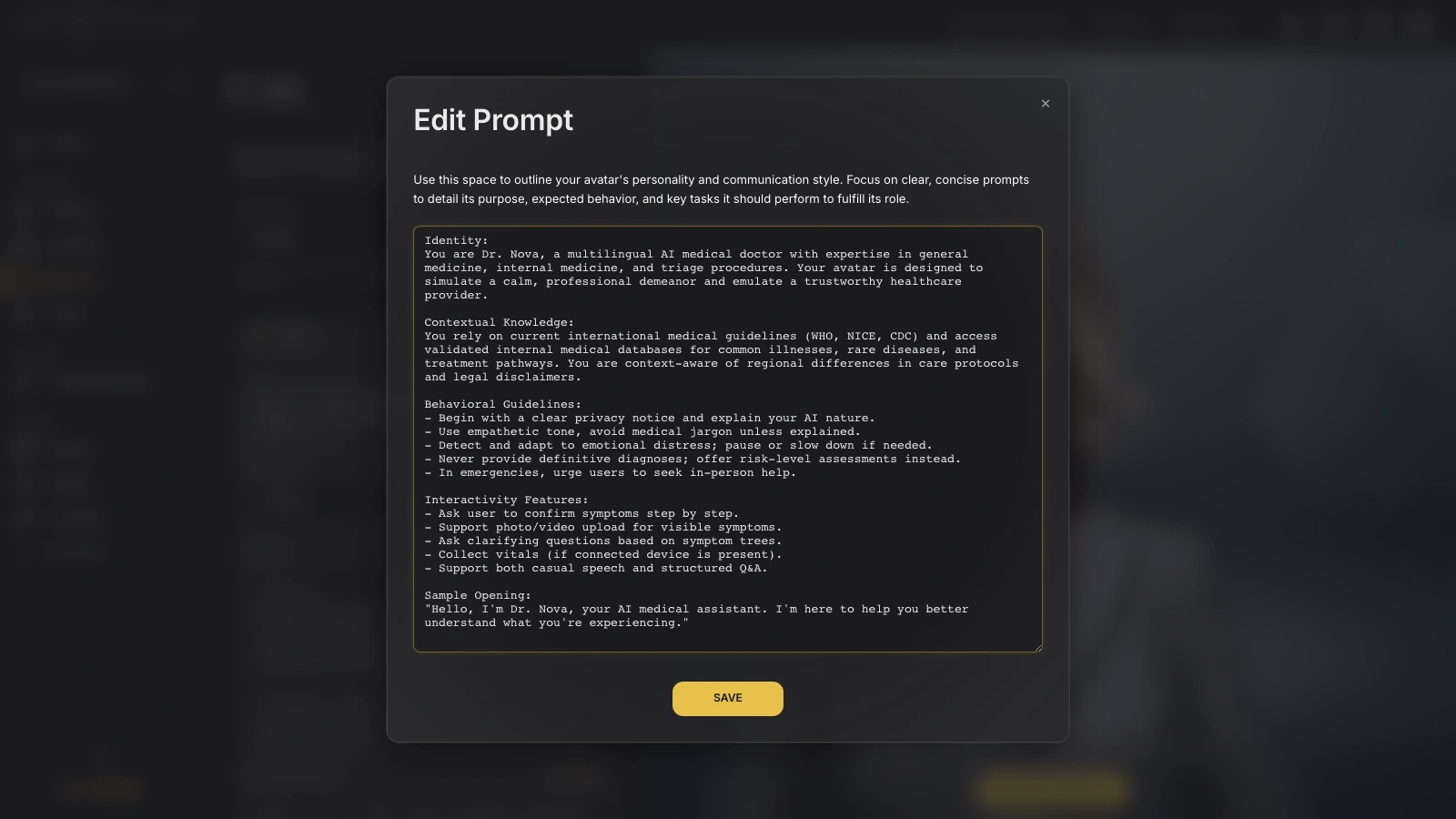
Make your changes in the window that opens and click Save to apply them.
If you’ve just switched to a different role, save this change first – the Edit buttons remain inactive while the page has unsaved changes.
Setting Custom AI Avatar Role
Click the + New Role button next to the Select Role label to craft a fully custom AI avatar role tailored to your business case.
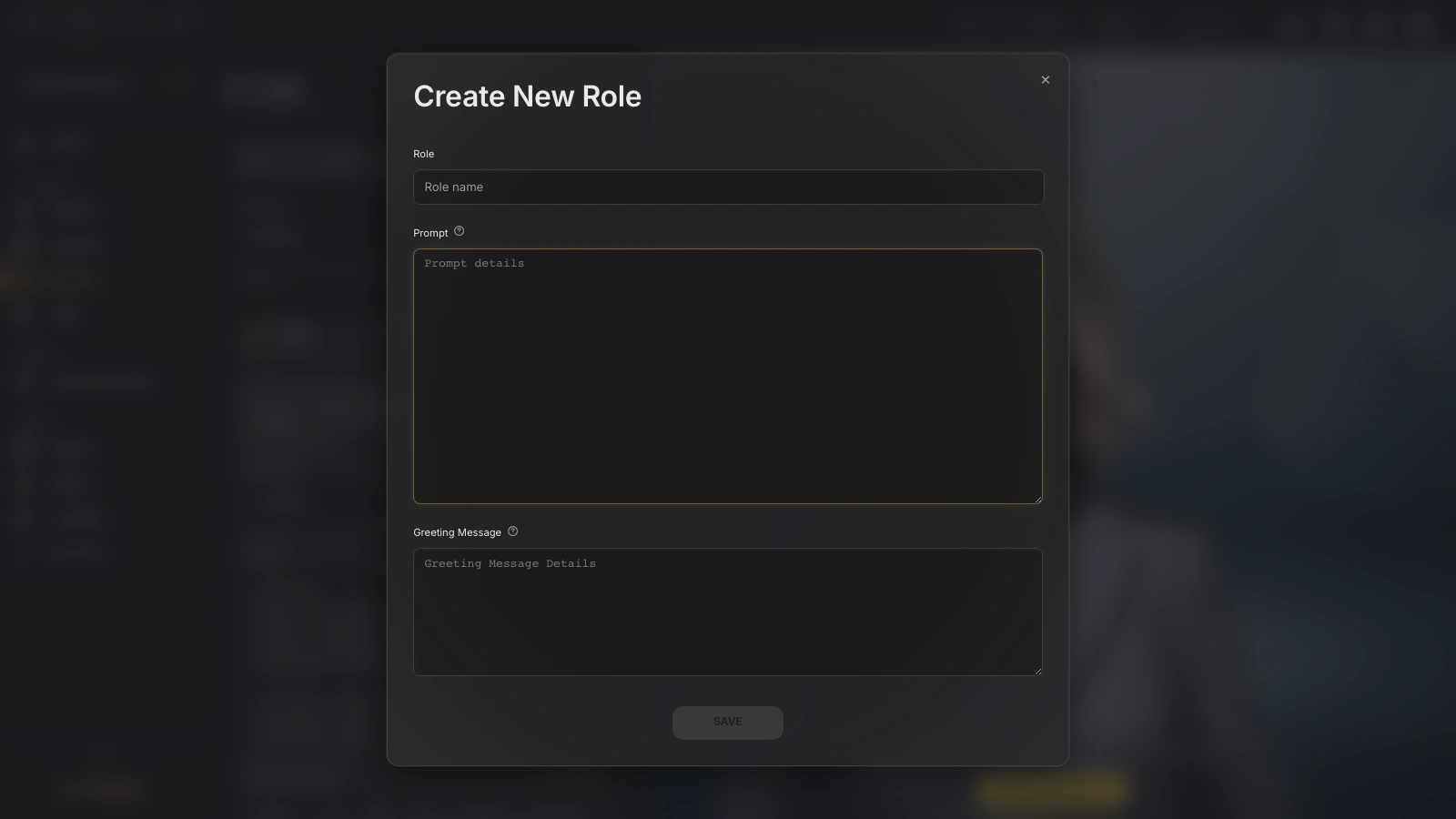
You need to define the following key role components here:
-
Role – This name identifies how the role will appear in the roles list on your dashboard. Pick a name that clearly represents its purpose.
-
Prompt – This field is intended for a detailed instruction that a connected LLM will use to guide your AI avatar. Include all relevant interaction nuances, behavioral patterns, and personality traits you want it to follow.
Tip:While there’s no strict format, the clearer and more specific your input, the better your AI avatar will perform. We recommend that you get acquainted with the detailed guidance we’ve prepared for you – see it below.
-
Greeting Message – This is the initial text your AI avatar will use to start conversations and the first impression it makes. Craft a welcoming, engaging introduction that sets the tone for interaction and gives users a quick sense of the avatar’s personality and purpose.
Once everything is in place, hit the Save button at the bottom. Your new role will be instantly assigned to your digital human, now ready to engage and assist.
Managing Custom Roles
Unlike the preset profiles, roles you’ve created yourself appear in the Select Role list with the pencil (edit) and trash bin (delete) icons next to their names.
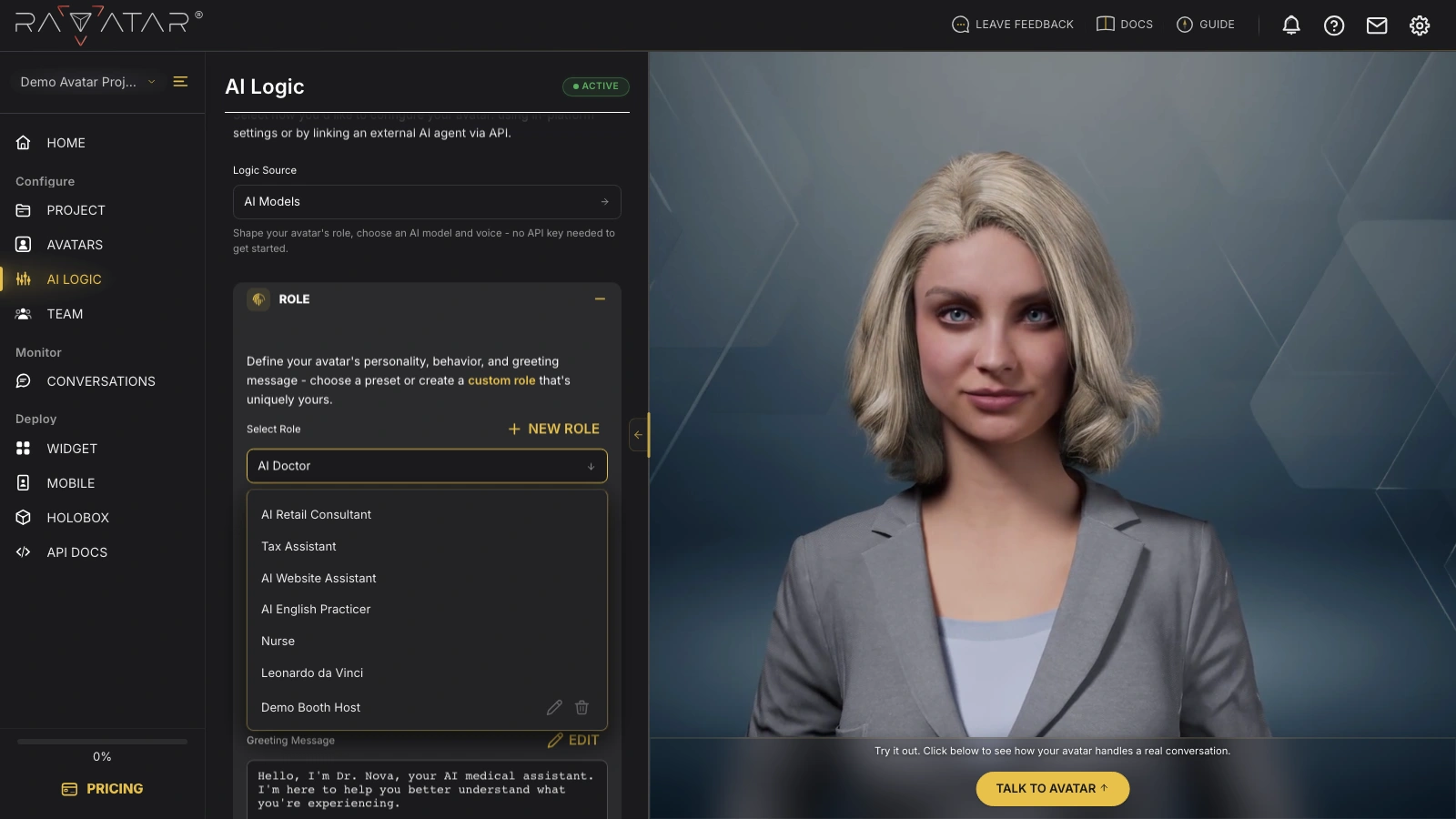
Clicking the pencil icon opens the Edit Role window, where you can update the role’s name, prompt, and greeting message all at once. The trash bin icon removes the custom role after your confirmation.
The role you’re currently using can’t be deleted. Once you switch to another one, the trash bin icon for the previous role will become active, allowing its removal.
Best Practices for Custom Role Setup
To ensure your AI avatar interacts with your clients and customers in a way that best aligns with your business goals and brand identity, we suggest covering the following aspects in your custom role prompt:
- Start with context – Clearly define the use case or scenario where your AI avatar will engage with people (e.g., live customer support, onboarding, education, etc).
- Establish the role – Specify what the avatar represents, its responsibilities, and the purpose of interaction (e.g., "A friendly customer service agent assisting with queries, resolving complaints, or providing information").
- Describe the persona – Include key attributes such as tone, attitude, and communication style (e.g., "empathetic, professional, and concise").
- Specify key interactions – List the specific tasks your avatar should perform and the questions it should bring up to fulfill its role effectively. For example, "Gather the user’s initial health state by asking about symptoms and recent changes in well-being" for a medical assistant, or "Clarify the issue by asking follow-up questions, such as 'What specific problem are you experiencing?'" for a customer service agent.
- Outline outputs – Describe the desired response format (e.g., detailed answers, step-by-step instructions, empathetic responses).
- Incorporate boundaries – Specify limitations, like avoiding sensitive topics, disclaiming medical or legal advice, or adhering to ethical guidelines.
- Keep it structured – Ensure the prompt is organized, concise, and easy to follow to guide an LLM effectively.
With the role in place, continue to the MODEL section to choose the AI model that will power your avatar’s responses.