MODEL
This part of the in-platform AI avatar logic configuration is where you connect a Large Language Model (LLM) – the model that powers your AI avatar’s conversations. The MODEL panel is the second section of the AI LOGIC wizard step, shown when the Logic Source is set to AI Models.
Here’s what you can set up in this section:
- Choosing an Engine
- ChatGPT and custom OpenAI GPT models
- Azure OpenAI
- OpenAI Realtime
- Gemini Live
- Gemini Live Native Audio
Choosing an Engine
Expand the Engine drop-down list to view the AI engines offered by Genesis Studio:
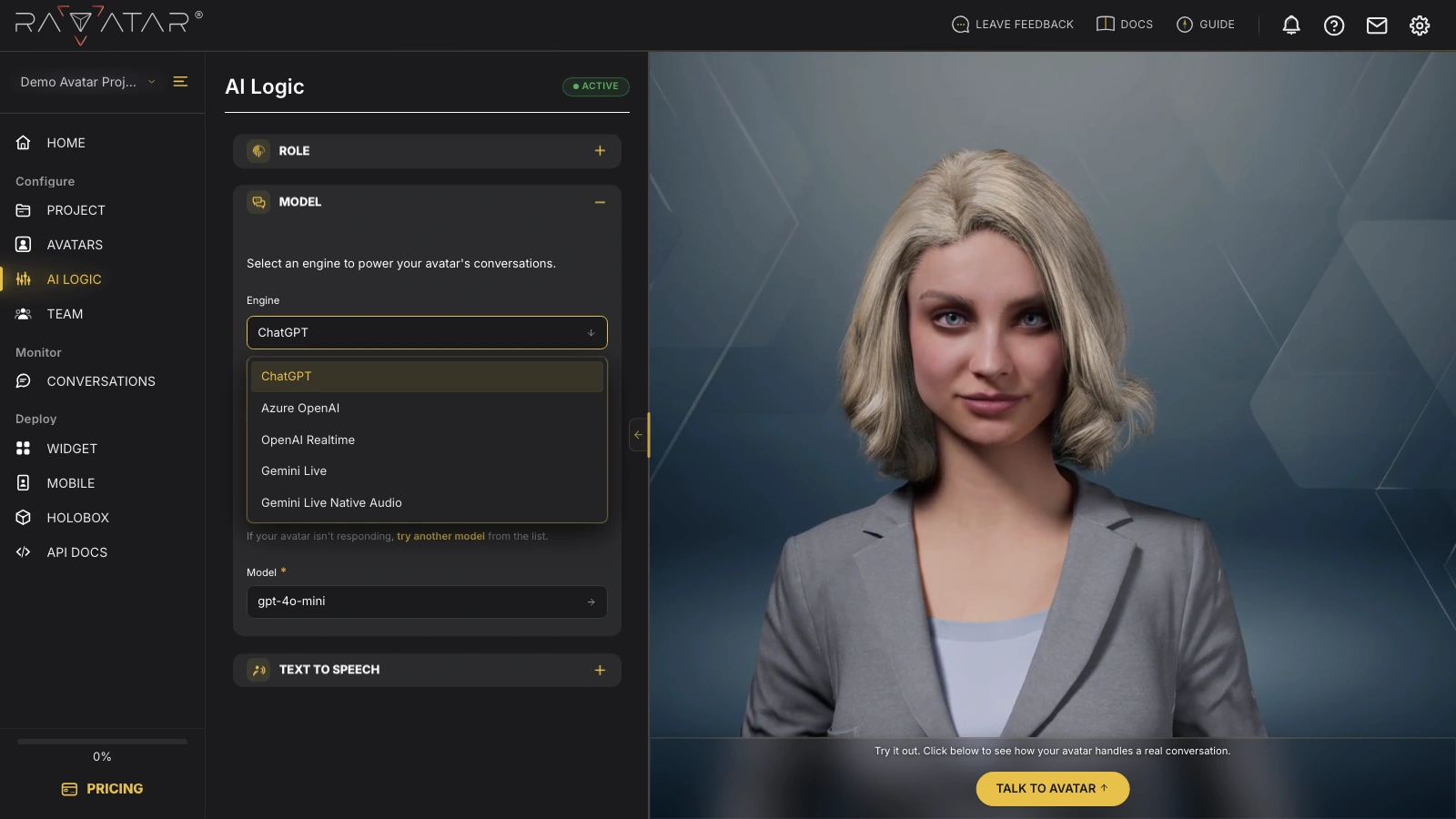
- ChatGPT – OpenAI’s conversational AI; you can use the built-in model or supply your OpenAI API key to access custom or fine-tuned models from your own account. See the ChatGPT guide.
- Azure OpenAI – Microsoft-hosted access to OpenAI models with enterprise controls, available by connecting your own Azure resource via API. See the Azure OpenAI guide.
- OpenAI Realtime – OpenAI’s live speech-to-speech engine with built-in voice output. See the OpenAI Realtime guide.
- Gemini Live – Google’s live speech-to-speech engine, with optional RAG support. See the Gemini Live guide.
- Gemini Live Native Audio – a Gemini Live variant that generates speech directly inside the model. See the Gemini Live Native Audio guide.
After making your choice, click Save below to apply the updated configuration, then open the matching guide to finish the connection.
The live engines (OpenAI Realtime, Gemini Live, Gemini Live Native Audio) handle speech on their own, so the separate TEXT TO SPEECH section is hidden while one of them is selected.
The list of supported engines will grow over time. If you’d like to use a different LLM for your project, you can contact the RAVATAR team at support@ravatar.com to discuss possible integration. Custom setups involving third-party services are priced individually based on scope.