Google TTS
With Google TTS selected as the provider, each chosen language appears below as a separate drop-down field (e.g., English Voice) with multiple voice options, matched in gender to your avatar.
The set of fields mirrors the Languages list of the TEXT TO SPEECH panel – add or remove a language there, and the matching voice field appears or disappears here.
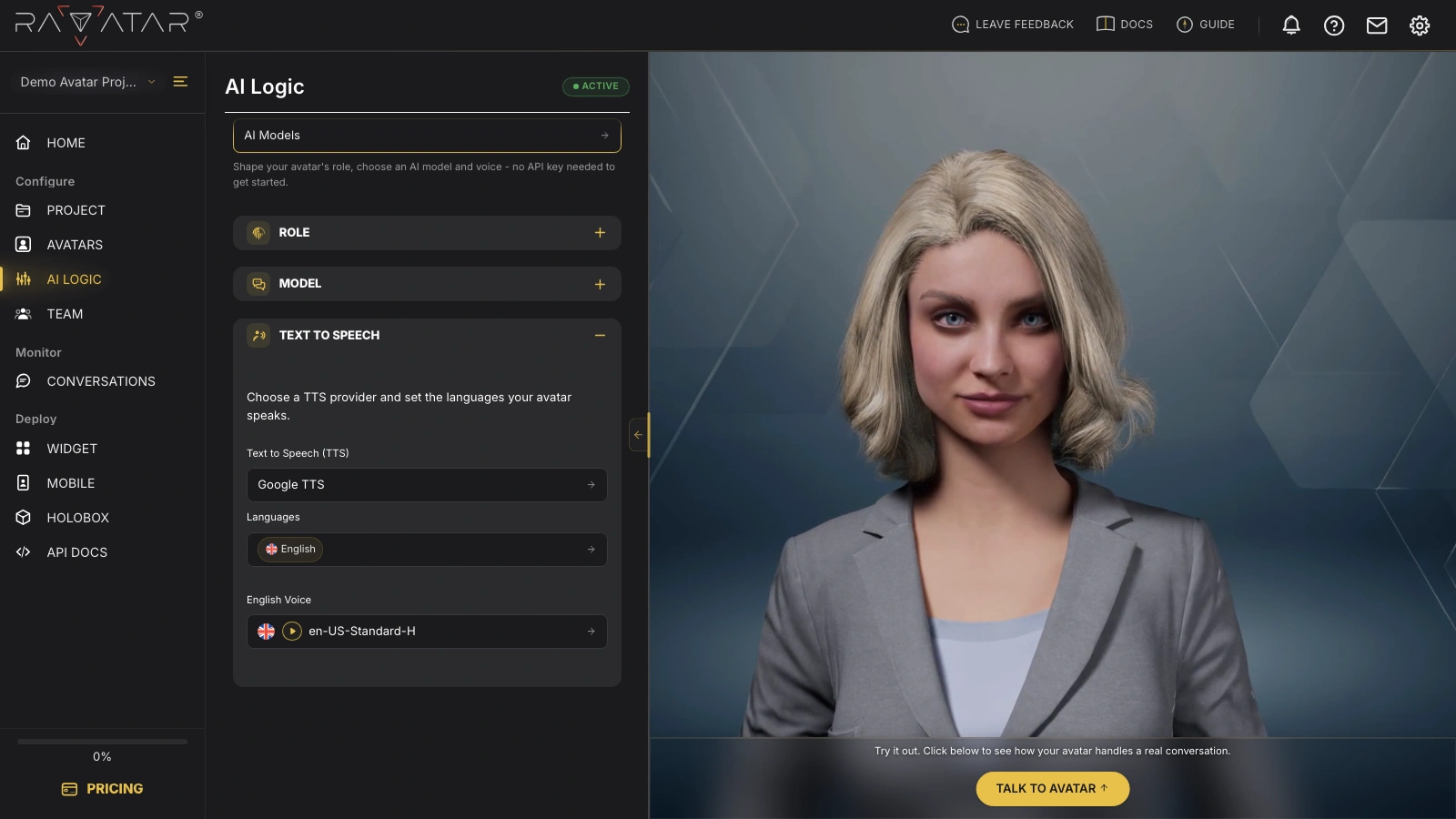
You can preview any voice by clicking the play button next to it and choose the one that best fits your avatar’s character. The built-in search field helps you find a specific voice quickly.
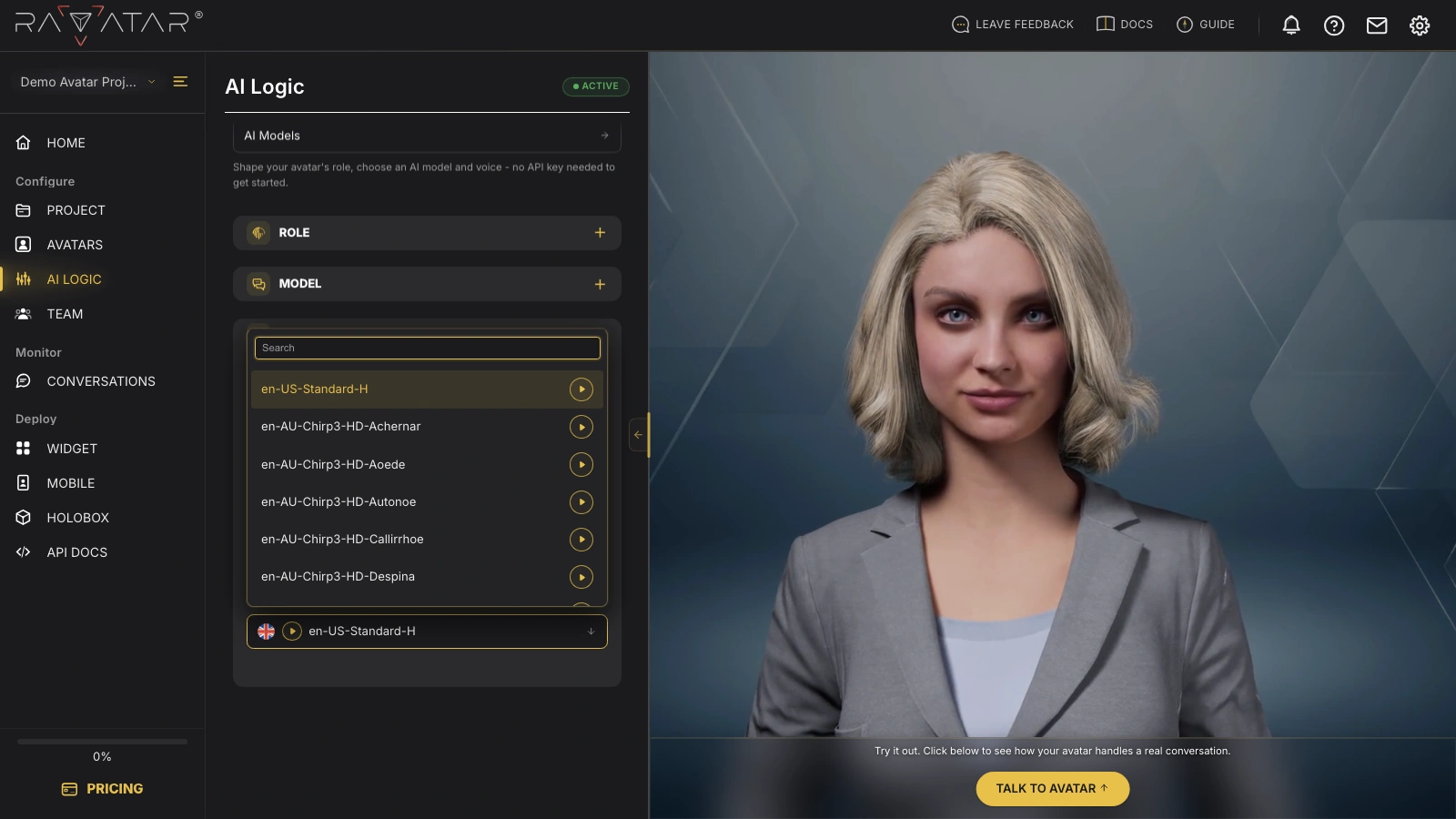
Once you’ve assigned a voice for every language, click Save to apply the configuration.
With the voices in place, try a real-time conversation in the Live Preview panel, or continue to the TEAM section to invite collaborators to your project.