Gemini Live
Gemini Live is Google’s live speech-to-speech engine: the avatar streams audio directly to the Gemini Live API, which handles both speech recognition and voice output. A separate variant, Gemini Live Native Audio, generates speech directly inside the model.
Since the engine produces voice on its own, the separate TEXT TO SPEECH section is hidden while Gemini Live is selected. The one exception is the RAG mode described below.
Connecting Gemini Live
Selecting Gemini Live as the engine reveals its connection settings:
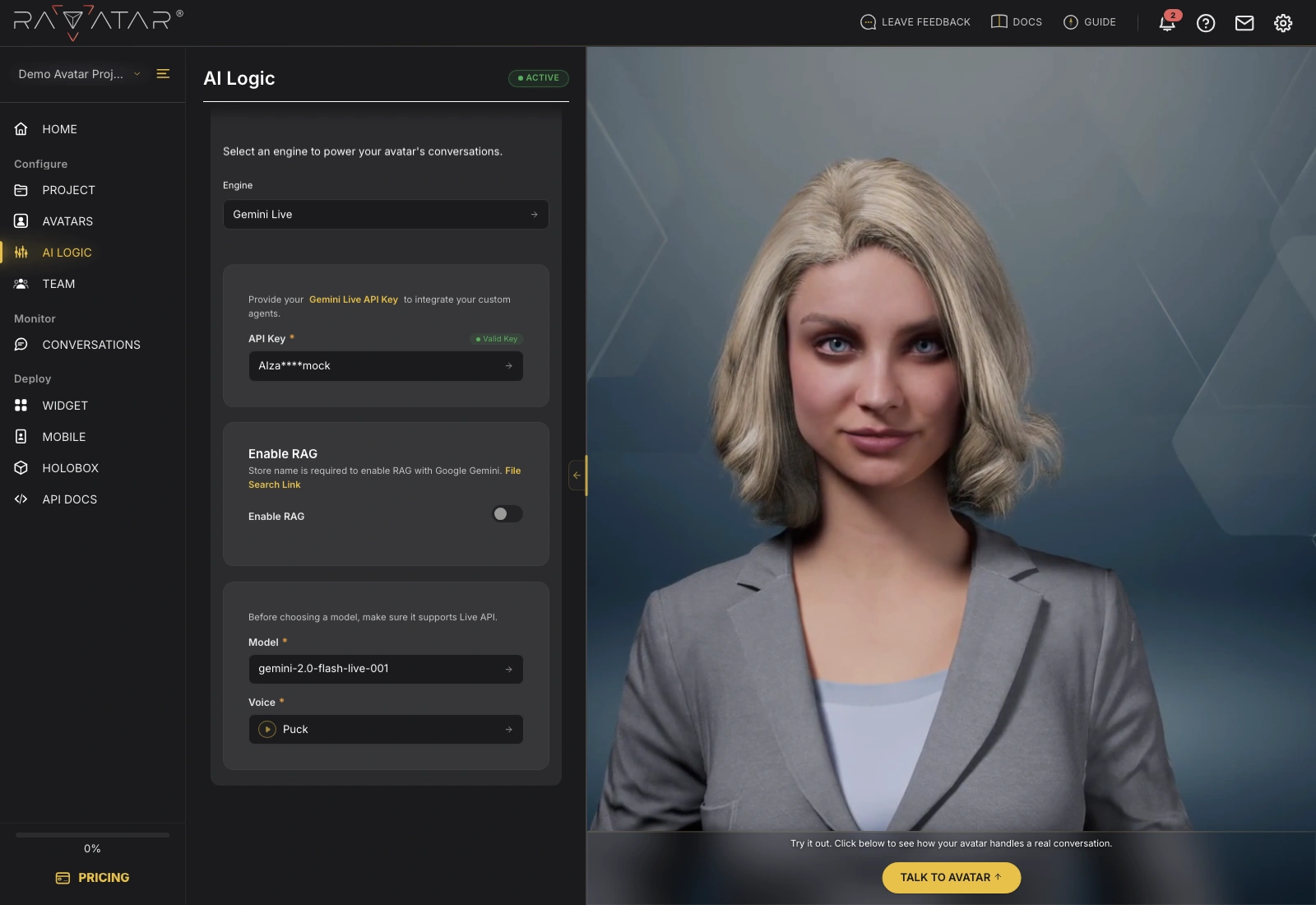
- API Key – this engine requires your own Gemini API key, created in Google AI Studio. Enter it in the field (or pick one you’ve saved earlier from the drop-down list). The key is verified automatically, and a Valid Key or Invalid Key badge appears next to the field.
- Model – choose the Gemini model to power the avatar. Before choosing, make sure the model supports the Live API.
- Voice – pick the voice your avatar will speak with. You can listen to a sample of each option by clicking the play button next to it.
Click Save to apply the configuration.
Enabling RAG
The Enable RAG toggle connects the engine to a Google File Search store, so the avatar can ground its answers in your own documents. With the toggle on, enter the Store name of your File Search store – the field is required in this mode.
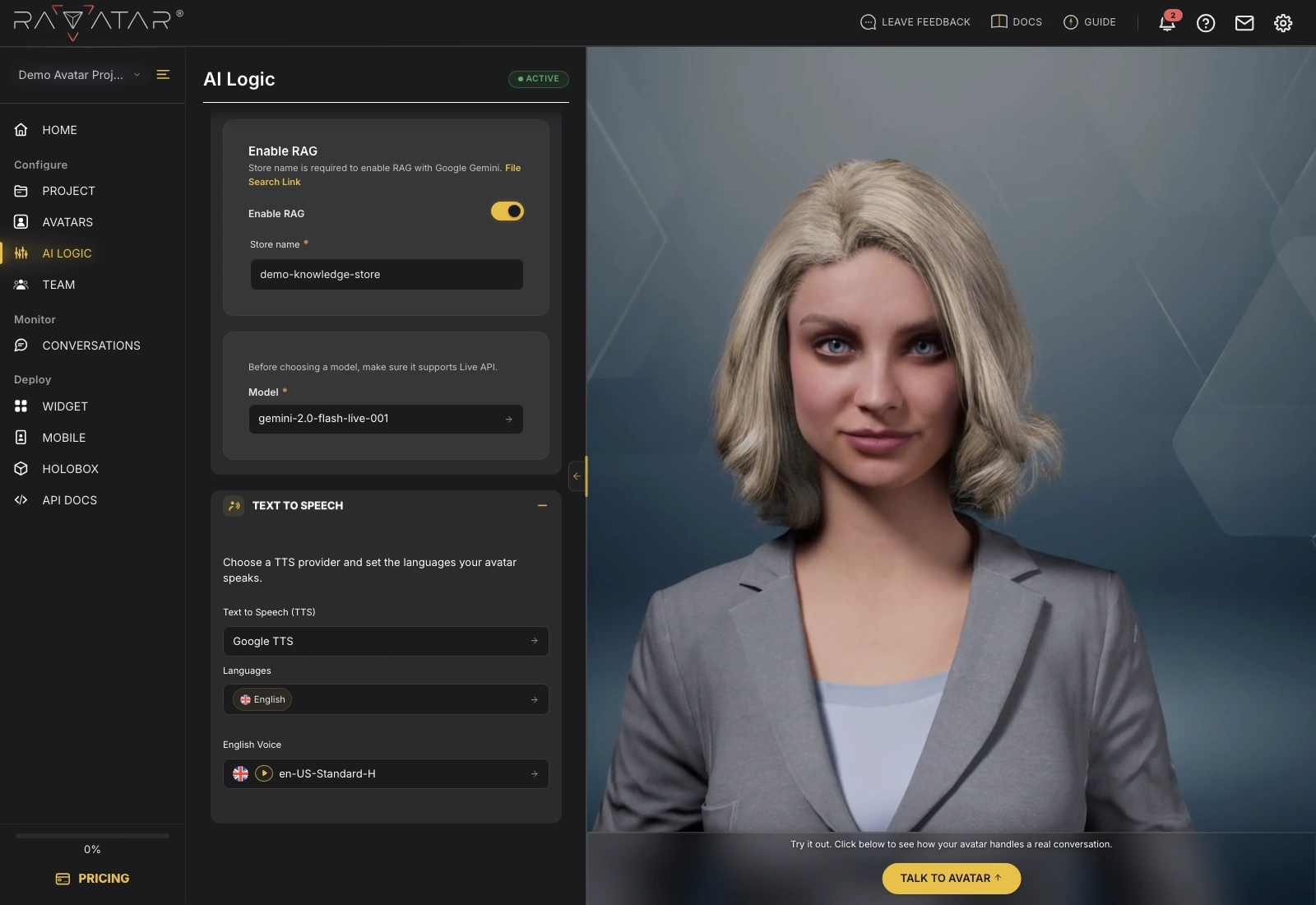
In RAG mode, the engine returns text instead of audio, so the Voice field disappears and the standard TEXT TO SPEECH section appears below to voice the avatar’s replies.
With the connection in place, talk to your avatar in the Live Preview panel to hear the result.